Who can access your internal service? 5 ways to add authorization
Internal services sometimes need to be exposed — to an employee, a contractor, or a client. For example, opening up staging, an admin panel, an internal dashboard, or an API for integrations. Or an HTTP service without its own authorization, like Prometheus or Alertmanager.
The task is clear: instead of building sign-in into every service separately, put an access layer in front of it and decide who gets in, how, and to which paths.
There are several ways to solve this, and each works best in its own situation. We'll go from the simplest to the most flexible in terms of control. At the end — a comparison table.
Go to the Apps section in the documentation
Method 1. VPN: don't expose the service at all
The classic approach: the service lives in a private network, access only via VPN.

When it works. The company already has a deployed and maintained VPN, all users are full-time employees with configured clients, and there's no need to let anyone in from outside.
Limitations:
- Control at the network level, not at the user and path level. Setting it up so developers have full access while designers only see /dashboards isn't possible.
- Someone has to deploy and maintain the VPN.
Overkill for small projects. Spinning all this up for one Grafana instance and five people is using a sledgehammer to crack a nut.
Method 2. Basic auth: username and password on the proxy
The quickest option: put HTTP basic auth on nginx or directly on the tunnel — in Tuna this is done with a flag at startup:
tuna http 3000 --basic-auth="user:password"

When it works. You need to show a demo to a client for a day or two, or cover a test stand from bots and random visitors. One username-password pair, zero configuration.
Limitations.
- No visibility into who accessed what. The password is shared by everyone, passed around in chats — there's no personal attribution, and you won't know who was inside.
- You can't revoke access for one person — only change the password for everyone at once.
- No roles, second factor, or log. Basic auth just asks for a password but doesn't let you differentiate permissions or view sign-in history.
Essentially it's a lock for honest people: fine for a two-day demo, but not for ongoing access to an admin panel.
Method 3. IP filters: allow only from your own addresses
Grant access to a list of IPs or subnets at the firewall, in nginx, or on the tunnel.

When it works. Access is needed from an office with a static address or from specific servers (monitoring, CI). For machine traffic from known addresses — a solid solution.
Limitations:
- Breaks when people work from home, mobile internet, or while traveling, and their addresses keep changing.
- No personal attribution. The filter answers the question of where they came from, but not who they are.
Method 4. Build it yourself: nginx + oauth2-proxy
Full authorization in front of the service without changing its code: a reverse proxy, oauth2-proxy in front of it, an OIDC provider, certificates.

When it works. You have DevOps resources, non-standard requirements, and want full control over every layer. This is how many infrastructure teams operate.
Limitations:
- Higher barrier to entry. Before launch you need to connect the proxy to the provider, figure out cookie domains and redirects, set up certificate renewal.
- Requires maintenance. The setup needs to be maintained and reworked whenever requirements change.
- Fine-grained rules are assembled manually. To open a path only to one group of users and only with MFA, you need multiple tools.
For one or two internal services, this level of effort rarely pays off.
Method 5. Zero Trust reverse proxy: a ready-made authorization layer
The idea is the same as method 4 — verify every request before it reaches the application — but all the authorization infrastructure is handled by a ready-made platform. This approach is called Zero Trust. Corporate products like Cloudflare Access work this way, and in Tuna it's the Apps service.
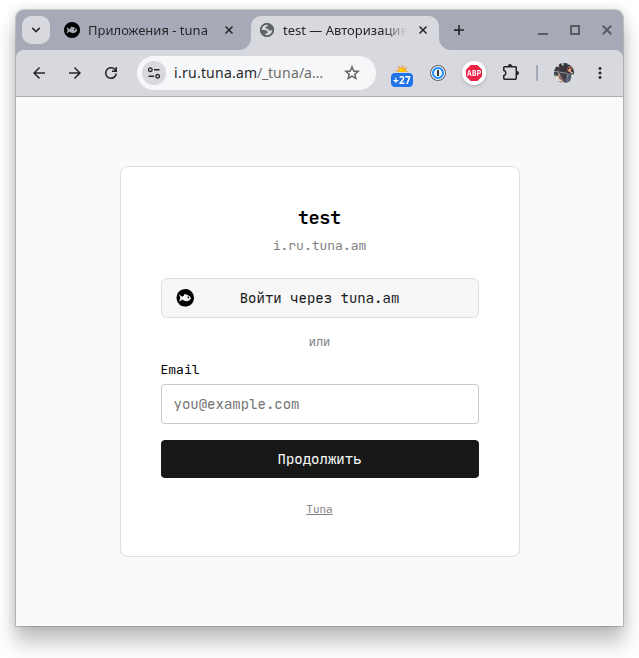
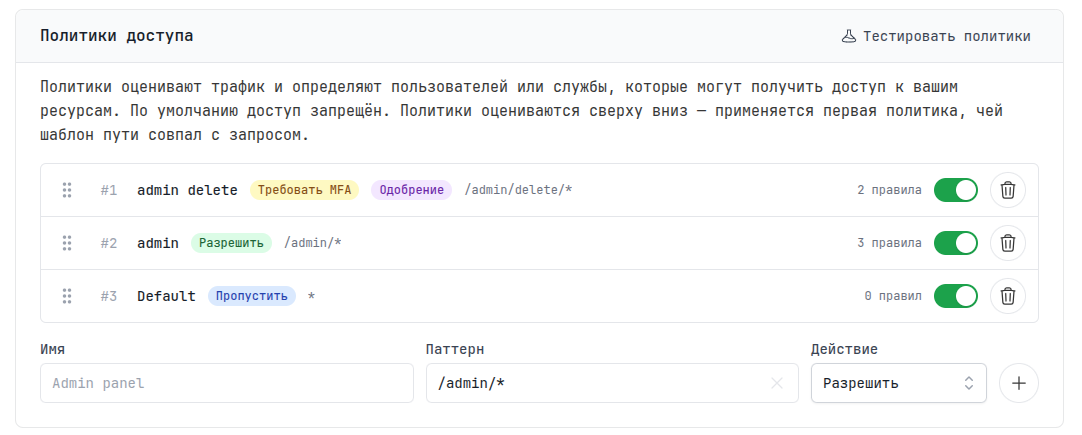
How it looks in practice. You create an app in the web interface and describe the access rules: which paths are open to whom, where to require a second factor, who to block entirely. Verification happens on the Tuna side — only requests that pass all rules reach your service. No changes needed in the application code.
Several things that would require separate tools in the DIY approach are available out of the box here:
- different sign-in methods for different people — corporate SSO for the team (Google, Yandex, GitHub, GitLab, VK, or any OIDC provider) and a one-time email code for an external contractor who doesn't need to create an account;
- path-level rules — for example, leave
/api/healthopen for health checks while closing everything else; rules combine by email, team, country, IP and sign-in method; - access management — an access request mode with manual approval (the person explains why they need access, and you decide whether to let them in), visibility of active sessions and access revocation at any time: in the sessions section you can see who's currently inside, and any session can be closed individually or all at once;
- service tokens for CI/CD and monitoring — machine traffic is separate from human traffic and equally subject to rules;
- log and sessions — the audit log records who signed in from where, who changed rules and granted access; you can see sign-in history and admin actions.
If the service has no public IP — it's on a laptop, behind NAT, in a restricted network — you can publish it via a tunnel with a single command:
tuna app my-service --url=http://127.0.0.1:8080
Detailed setup guide — in the documentation, feature overview — in the blog.
Limitations:
- This solution is for web services and HTTP APIs. Database access or SSH access to servers are separate tasks — for those there are TCP tunnels with IP filters and Bastion.
- Like any SaaS, the platform is an external dependency: if company policy requires keeping access control strictly within your own perimeter, your path is method 4.
Comparison
| User identified | Access rules | MFA | Access revocation | Setup complexity | Maintenance | |
|---|---|---|---|---|---|---|
| VPN | partially (network level) | no | depends on VPN | manual, per profile | medium–high | ongoing |
| Basic auth | no | no | no | can't revoke individually | minutes | none |
| IP filters | no (only where from) | no | no | by editing the list | minutes | routine list updates |
| nginx + oauth2-proxy | yes | yes, assembled manually | yes | manual | days | on your side |
| Zero Trust proxy (Tuna Apps) | yes | yes, from the interface | yes | one step from the interface | minutes | on the platform side |
Summary: how to choose
Showing a demo for a couple of days → basic auth on a tunnel is enough.
Only allowing servers and an office with a static IP → IP filters will do.
The whole team is full-time, VPN is already running and someone maintains it → stay on VPN.
You need user and path-level control, visibility into who accessed what, and the ability to revoke access individually — but don't have the resources to build and maintain a proxy + OIDC setup → use a Zero Trust proxy.
And if your policies prohibit moving authorization outside your own perimeter → build method 4 and allocate time for maintenance.
Try it now
Go to the Apps section, click + Add app — and protect your first service with authorization in minutes.
Detailed description of all features — in the documentation:
Leave feedback
If you enjoy using Tuna, or on the contrary you are not happy with something, please leave feedback.
News
We announce new features and posts on our Telegram channel. Subscribe so you don't miss anything.
Help
We value our users and carefully review every request. If you have any problems with tuna, please contact us in one of the following ways: