tuna-cli 0.36 — terminal UI and a major update
Over the last two releases, the tuna-cli console client has changed more than in the entire previous year. The highlight: tunnels now have a full-screen terminal interface — instead of a scrolling text log, you see a request feed, metrics, database and SSH sessions, and can inspect any request without leaving the console.
You can update to 0.36.1 using the update guide, and the client itself will now suggest the right command — more on that below.
Terminal interface
The interface activates automatically when you run tuna http, tuna tcp, tuna ssh, tuna postgres, tuna redis, or tuna kubernetes in a terminal. The header always shows the account, the tunnel address and the local address it points to, a link to the inspector, and the connection status. If the tunnel runs with access restrictions or options, the header shows Access and Options lines — for example, basic auth (1) · cidr deny 203.0.113.0/24 and rate limit 20/s · cors, so you can see the current settings at a glance. Passwords and keys are not shown, only their count. The main area depends on the tunnel type.
HTTP: request feed and metrics
New requests appear at the top; above the feed are counters: total requests, rpm, p50 and p90 response time, and the number of 4xx and 5xx responses. Enter opens request details with headers and formatted JSON body, r replays the request, and / filters the feed by method, path, or status. Debugging a webhook or API has become noticeably easier: no need to switch to the browser to see what exactly arrived.
Postgres and Redis: sessions and queries
Sessions are listed on the left, events for the selected session on the right: queries with syntax highlighting, row count in the response, and errors. y copies the query to the clipboard. You can see which queries your application or a colleague connected to the database through the tunnel is sending.
SSH: live view and session recording
For tuna ssh, the interface shows connection instructions and a session feed, including access denials. Enter on an active session opens live viewing; on a finished session — playback of the recording.
Keyboard shortcuts
| Key | Action |
|---|---|
c | Copy the tunnel address |
i | Open the inspector in the browser |
Q | Show a QR code of the address — handy for opening the site on your phone |
l | Show or hide the log |
↑ ↓, g / G | Navigate the feed |
Ctrl+C | Stop the tunnel and exit |
The full list of keys for each tunnel type is in the documentation.
If you need the good old log
The interface does not interfere with automation: it is not activated when output is redirected to a file or pipe, the tunnel is running as a service, the CI or NONINTERACTIVE variable is set, or when tuna is launched by an AI agent — Claude Code, Cursor, and others. To get the text log back manually, use the --log=stdout flag or the TUNA_TUI=0 variable:
tuna http 8080 --log=stdout
Tunnels
Unix sockets
tuna http and tuna tcp can now publish an application listening on a unix socket instead of a port — for example, gunicorn or php-fpm behind a proxy:
tuna http unix:///run/gunicorn.sock
The inspector, request replay, and traffic policies work the same way as with a port. Via a TCP tunnel, you can, for example, temporarily expose the Docker API — just make sure to restrict access to your IP with --cidr-allow: access to docker.sock is equivalent to root access on the host.
Traffic policy by URL and response compression
A traffic policy for tuna http can now be loaded from an https URL — one policy in a repository for the entire team:
tuna http 8080 --policy-url=https://gitlab.com/example/policies/-/raw/main/policy.yml
The new compress_response action compresses the application's response in br, zstd, gzip, or deflate if it hasn't done so itself. The response is compressed on the fly, so SSE and streaming responses continue to work.
Additionally, policy enforcement has become stricter: if the file from --policy-file is not found, the policy fails to parse, or the account lacks a Team subscription, the tunnel will not start — previously, the client showed a warning and continued. See the Policy errors section for details.
Trigger receives event data
tuna trigger previously just ran a command on an incoming webhook or email. Now the command receives the event itself: the request body or email arrives on stdin, and the method, path, query, and headers are available in TUNA_REQUEST_* and TUNA_MAIL_* environment variables. This way, for example, you can trigger a deploy only on a push to main:
#!/bin/sh
set -e
[ "$TUNA_REQUEST_HEADER_X_GITLAB_EVENT" = "Push Hook" ] || exit 0
jq -e '.ref == "refs/heads/main"' > /dev/null || exit 0
/opt/app/deploy.sh
The SMTP trigger now fires on every received email, not once per connection, and the local SMTP server address is set with the --listen-address flag.
GitHub and Sentry webhook signature verification
--verify-webhook=github and --verify-webhook=sentry now verify the HMAC-SHA256 of the request body as described in the provider documentation. Previously, real deliveries from GitHub and Sentry would get a 401 — if you disabled verification because of this, now is the time to turn it back on.
Secrets in the console
In tuna-cli 0.35, the secrets CLI grew significantly: working with individual secrets, managing projects and environments, secrets as a file without writing to disk, offline mode, and value fingerprints. More details in a dedicated post.
Small things that save time
- Upgrade hints. When a new version is released, the client shows a ready-to-run update command for your installation method: brew, winget, apt, dnf, zypper, the install script, or Docker.
tuna versionshows the installation method and checks for new versions. - Colored help output. In
--help, commands, flags, and examples are highlighted. - Deletion confirmation. Before deleting domains, ports, tunnels, API keys, secrets, and projects, the client asks for confirmation. To skip the prompt — use the
--yesflag. tuna whoamishows which account the client is authorized under.
What to check when upgrading
- Deletion in scripts requires
--yes. If a delete command, such astuna domain clearortuna secrets delete, runs without a terminal — in CI or cron — without the--yesflag, it will immediately exit with an error. - API keys are issued only in the dashboard. The
tuna api-key createandtuna session terminatecommands have been removed: the server no longer allows issuing keys or terminating web sessions via an API key. Keys are created in the dashboard. - New package repository. Linux packages have moved to the
code.tuna.amregistry, and the package is namedtuna-cli. On Debian and Ubuntu, a regularapt upgradewill switch the repository automatically; on RHEL, Fedora, and openSUSE, the repository needs to be changed once manually — commands are in the update guide. - Old version support timeline. For users without a subscription, versions 0.32.x stop working on October 1, 2026, 0.33.x — November 1, 0.34.x — December 1, 0.35.x — January 1, 2027. The full table is in the update policy.
The full changelog by version is in the changelog.
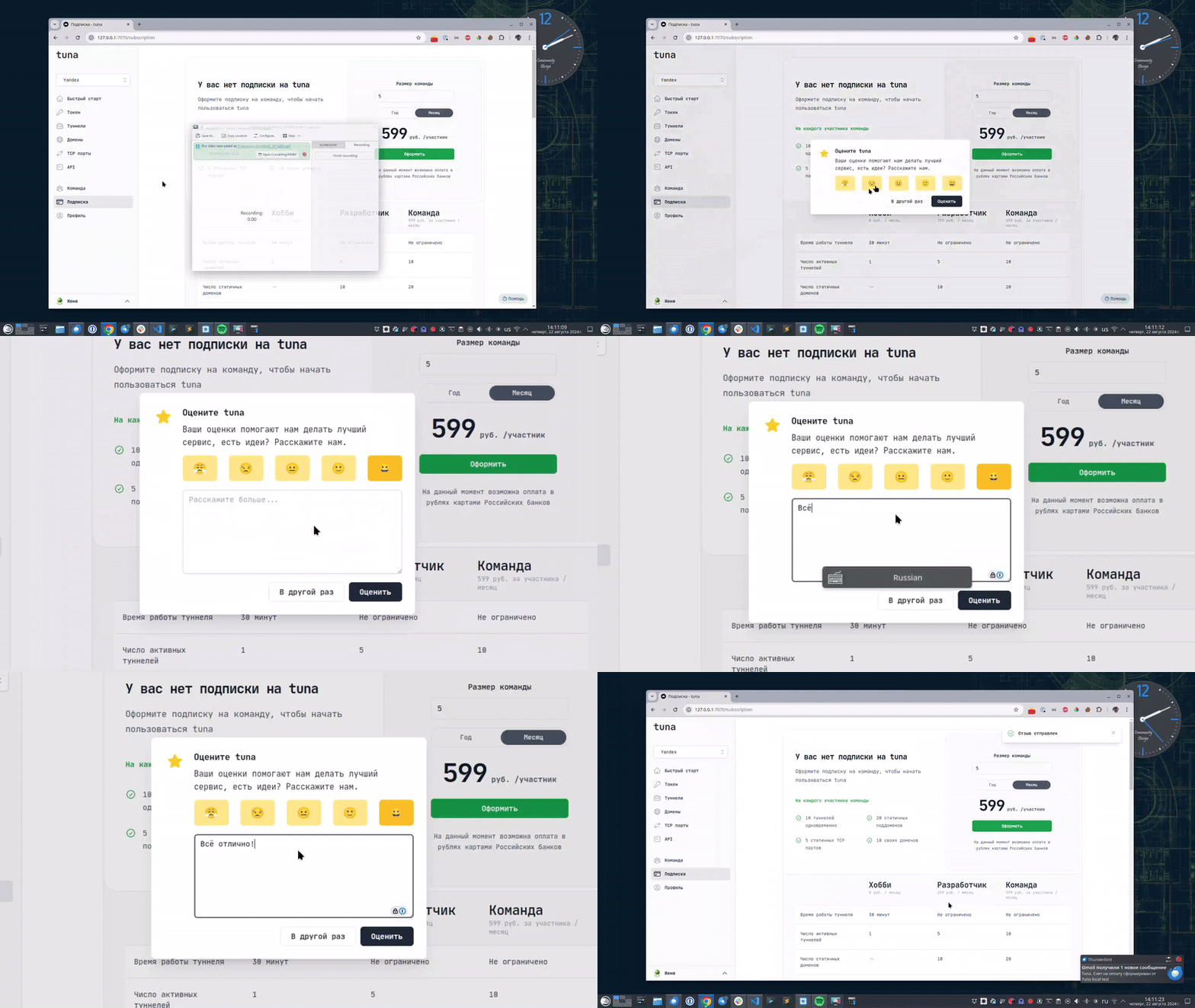
Leave feedback
If you enjoy using Tuna, or on the contrary you are not happy with something, please leave feedback.
News
We announce new features and posts on our Telegram channel. Subscribe so you don't miss anything.
Help
We value our users and carefully review every request. If you have any problems with tuna, please contact us in one of the following ways: