Tuna Mesh in beta — a private network for your devices
Tuna Mesh is still in beta, and we're not yet confident in its stability. Access is enabled on request: contact support. Go ahead and try it, and if something goes wrong, let us know: you'll help us debug it.
A tunnel is great when you need to expose a single service: a site for a client, a payment system webhook, an API for a colleague. But often you need something else: SSH into a server at the office, connect to a database on a staging environment, or open a NAS from home — all without exposing anything to the internet.
That's why we built Tuna Mesh, a private network between team devices. It's in beta, and starting with this release you can manage it from the dashboard. We took inspiration from Tailscale and NetBird, but ultimately chose our own architecture. Below we explain why.
A quick note: Tuna Mesh is not a VPN in the everyday sense and not a service for bypassing restrictions — it shouldn't be used that way. We don't provide infrastructure for routing internet traffic. We only connect a user's devices into an encrypted private network, similar to a corporate VPN. We classify such networks as NGVPN (New Generation Virtual Private Network): an enterprise-grade private network or access to your devices on local networks. To avoid confusion with VPN services, from here on and in the documentation we simply call it a mesh network.
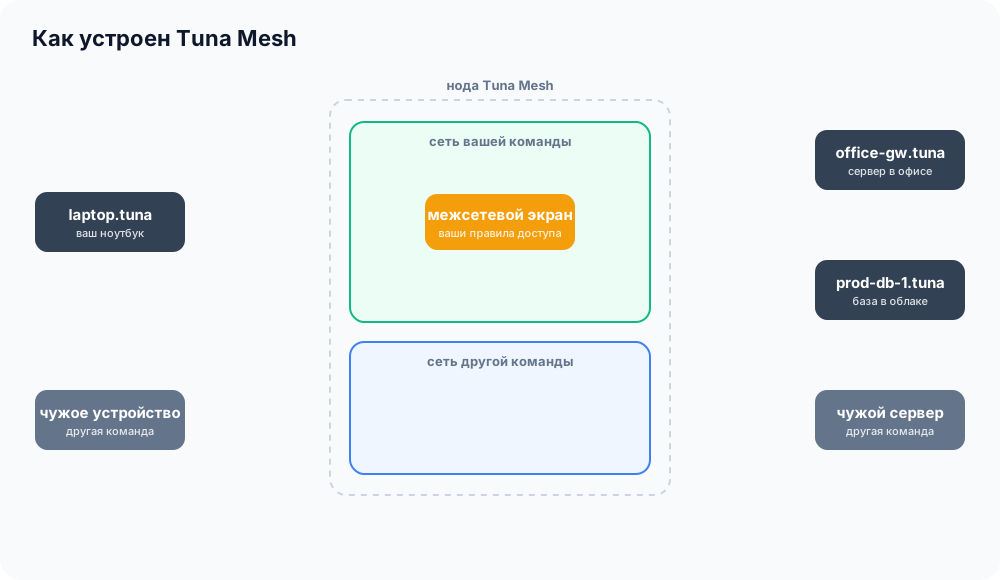
- Team devices get persistent addresses and DNS names like
office-gw.tuna. No public IP, open ports, or router configuration needed. - Traffic flows through Tuna nodes. Each team has its own isolated network and its own firewall there, and it cannot be bypassed from the device.
- Data travels over WireGuard by default. If a provider blocks it, the client automatically falls back to SSH.
- An exit node routes internet traffic through a team device, and subnet sharing opens access to an office or cloud network without a separate VPN server.
How it works
Devices in Tuna Mesh don't connect to each other directly. Each maintains a single encrypted channel to the nearest tuna-mesh node, and then traffic flows through our nodes. If a node goes down, the client switches to a neighboring one within seconds, and the device address stays the same.
Each device gets a persistent address from 100.100.0.0/16 and a DNS name based on its hostname: office-gw.tuna, prod-db-1.tuna. Devices communicate with each other using these addresses over any protocol and port:
ssh ubuntu@office-gw.tuna
psql -h prod-db-1.tuna -U app
There's no way to reach the devices from outside: only devices in your team are visible on the network.
Isolation and firewall on our side
On each node, every team has its own Linux network namespace. This is a separate network stack with its own interfaces, routes, and rules. Networks of different teams are separated at the kernel level, so a packet from another team cannot reach your network, even if the addresses overlap: the 100.100.0.0/16 range is the same for all teams.
Access rules work as a firewall inside this namespace. A packet that the rules don't allow is dropped on the node and never reaches the recipient. Where the check happens matters. In Tailscale and NetBird, rules are enforced by the device itself, so anyone with root access on it can disable them. Our firewall runs on the node, which the device has no access to, and it cannot be bypassed from the device.
This architecture has another consequence: a revoked device loses access immediately. The node terminates its session, and its packets go nowhere.
Reliability and security over speed
Tailscale and NetBird primarily try to connect devices directly, point-to-point over WireGuard, and route traffic through their relays only when a direct path isn't found. When a direct path exists, latency is minimal. We deliberately chose a different approach: traffic always passes through a node. This adds an extra hop and slightly higher latency. In return, we get a firewall that cannot be bypassed from the device, team isolation, instant device revocation, and a network that doesn't depend on whether the provider passes WireGuard.
In Russia, the last point is especially important. The WireGuard developers explicitly state that the protocol doesn't hide from traffic analysis, and its handshake packets are easily recognized by their fixed format. DPI systems exploit this: WireGuard has been among the protocols being blocked since fall 2025, and in 2026 connections over it are still being dropped by the first packet's signature. Cross-border connections are hit the hardest, but even within Russia WireGuard is unreliable: users of mobile carriers and regional ISPs report issues. We've seen this on our own servers: in some regional data centers in Russia, WireGuard establishes a connection but then the provider throttles UDP traffic by volume.
Tailscale and NetBird users have been asking for traffic obfuscation because WireGuard is periodically blocked in Russia and is easy to detect, but there's no built-in solution yet. And in October 2024, Tailscale itself temporarily cut off access for users in Russia. The restriction was rolled back, but with a warning that legal requirements could bring it back.
WireGuard by default, SSH as fallback
To keep the network accessible even under such blocks, the client has two transports.
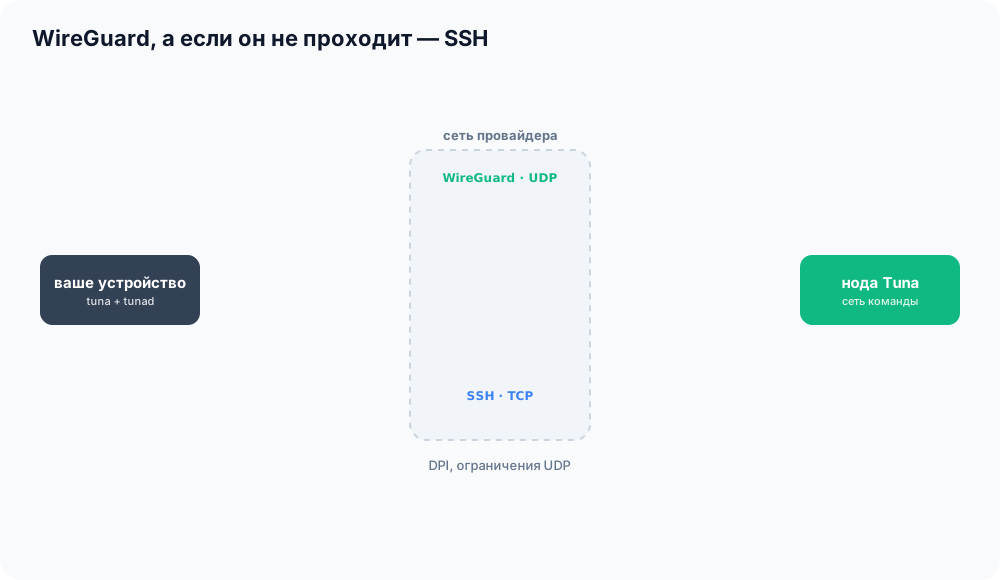
- WireGuard is used by default — it's the faster of the two transports.
- SSH kicks in when WireGuard degrades. The client regularly checks whether data is getting through, and if not, reconnects over SSH. This is ordinary TCP traffic, just like server administration. The client later tries WireGuard again.
SSH is slower than WireGuard, but the network doesn't drop during the switch. Here are our iperf3 measurements between two devices on a test bench in April 2026: nodes with 2 vCPUs and a 1 Gbps link, latency between nodes around 5 ms.
| Traffic path | WireGuard | SSH |
|---|---|---|
| Both devices on the same node | ~line speed | ~290 Mbps |
| Devices on different nodes | ~480–490 Mbps | ~63 Mbps |
SSH suffers the most on links with high latency and packet loss. SSH carries TCP over TCP, and every packet loss stalls the entire stream. That's why SSH is our fallback transport, not the primary one.
Connect in 2 clicks
You need to install tuna and the tunad service on the device — it configures the network interface. How to do this on Linux, macOS, and Windows is described in the documentation. Then on your workstation run:
tuna mesh login
tuna mesh up
The first command opens a browser where you confirm the device. The second connects it to the network.
On servers and in CI there's no browser, so enrollment tokens are available. A token is created in the dashboard with a lifetime from one hour to one day and can connect up to 10 devices:
tuna mesh enroll <token>
tuna mesh up
Command syntax may change during the beta — the current version is always in the documentation.
Exit nodes
A device running Linux or macOS can become an exit node: routing internet traffic of other team devices through itself. Sites and services see you from its IP address. An exit node is always a device on your team — we don't provide our own servers for internet access. Exit nodes and subnet sharing exist in both Tailscale and NetBird, so if you've used them, everything here will be familiar.
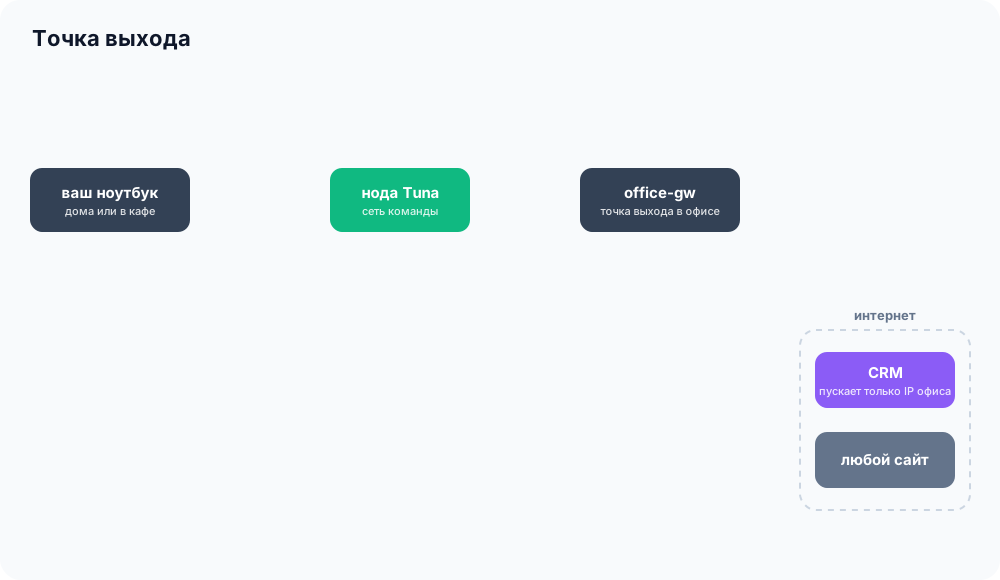
When this is useful:
- Services with IP allowlists. A CRM, admin panel, cloud console, or client database only allows access from the office IP. Set up an exit node on a machine at the office, and from your laptop at home you'll have the same access as at the workplace.
- Internet from another country. An exit node on a server in the desired country shows a site, ad, or payment form the way local users see it.
- Public Wi-Fi. In a café, hotel, or airport, all traffic to the exit node is encrypted.
To share an exit node, run on the device that will route traffic:
tuna mesh up --advertise-exit-node
And on your device, select it:
tuna mesh up --exit-node=office-gw
You don't have to route all traffic through the exit node. You can route only traffic to a specific country through it, or conversely, send traffic to one country directly and everything else through the exit node. With --fallback-to-direct, traffic goes direct while the exit node is unavailable. Traffic to the local network you're on always bypasses the exit node.
Who can use the exit node is decided by its owner: the entire team, specific devices, or only their own. More details — in the Exit nodes and subnets section.
Access to an office or cloud network
The second mode is subnet sharing. A device provides access to the local network it's on, and you don't need to install the client on every host in that network.
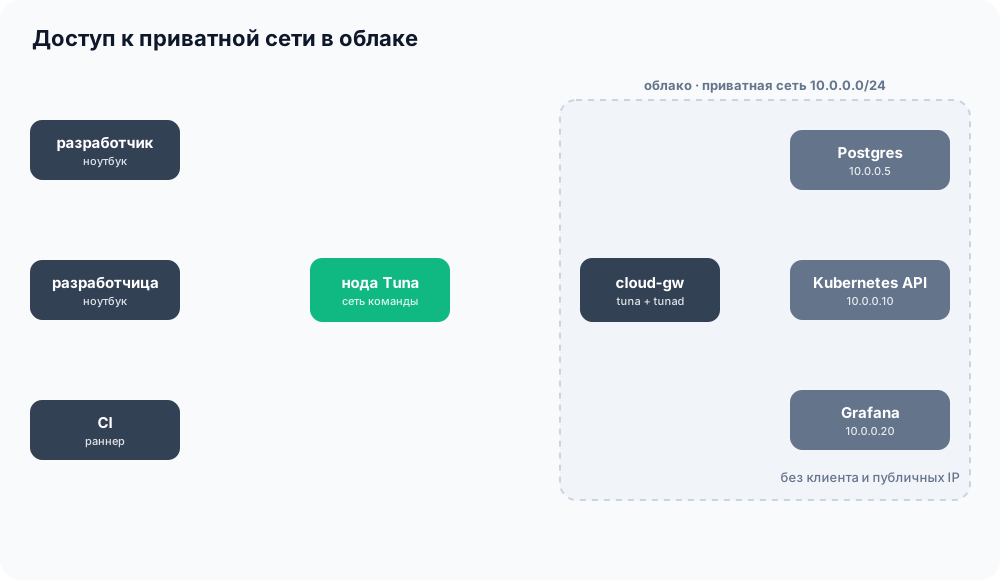
For example, you have a private network in the cloud with a database, Kubernetes API, and monitoring, and none of them are exposed externally. Usually you'd set up a VPN server or a bastion host and distribute configs to developers. With Tuna Mesh, it's enough to install tuna on one VM in that network:
# on the VM in the cloud
tuna mesh up --advertise-routes=10.0.0.0/24

# on the developer's machine — the subnet connects automatically
psql -h 10.0.0.5 -U app
curl http://10.0.0.20:3000/api/health
Office networks work the same way: one machine at the office gives colleagues access to printers, NAS, and servers. Hosts on the network see connections from the sharing device's address, so there's no need to configure return routes on them. Access rules apply here too: on the Legend plan, you can open the subnet to developers while allowing CI access only to the Kubernetes API.
Access rules
By default, a user's own devices can see each other, and everything else is blocked. On the Legend plan, the team admin sets custom rules: who, where, which protocol and port. For example, allow everyone to SSH into the office gateway but block the database.
Before saving a rule, you can test it on the Check access tab: the dashboard shows whether the rules would allow the connection and which rule would apply.
For team admins
The Team → Mesh section lists all team devices: owner, last seen online, connection method. Any device can be revoked, and the session terminates immediately. Enrollment tokens and team exit nodes are also listed there.
Plans
| Plan | Devices per member | Share exit nodes and subnets | Custom access rules |
|---|---|---|---|
| Starter | 5 | no | no |
| Pro | 10 | yes | no |
| Legend | 100 | yes | up to 100 rules |
Using other people's exit nodes and subnets is available on any plan, as long as the owner has granted access.
Limits are not final yet. We'll most likely expand them significantly before leaving beta: we want Tuna Mesh to be a better deal than Tailscale and NetBird.
How to try it
Tuna Mesh is in beta and is enabled per team on request. Contact support, and the Mesh section will appear in the dashboard sidebar.
This is a beta, so there are limitations: exit nodes must be selected manually, sharing is only available from Linux and macOS, and the device name is taken from the hostname. The full list is in the documentation. If something doesn't work or you're missing a feature, let us know — your feedback determines what we build next.
Leave feedback
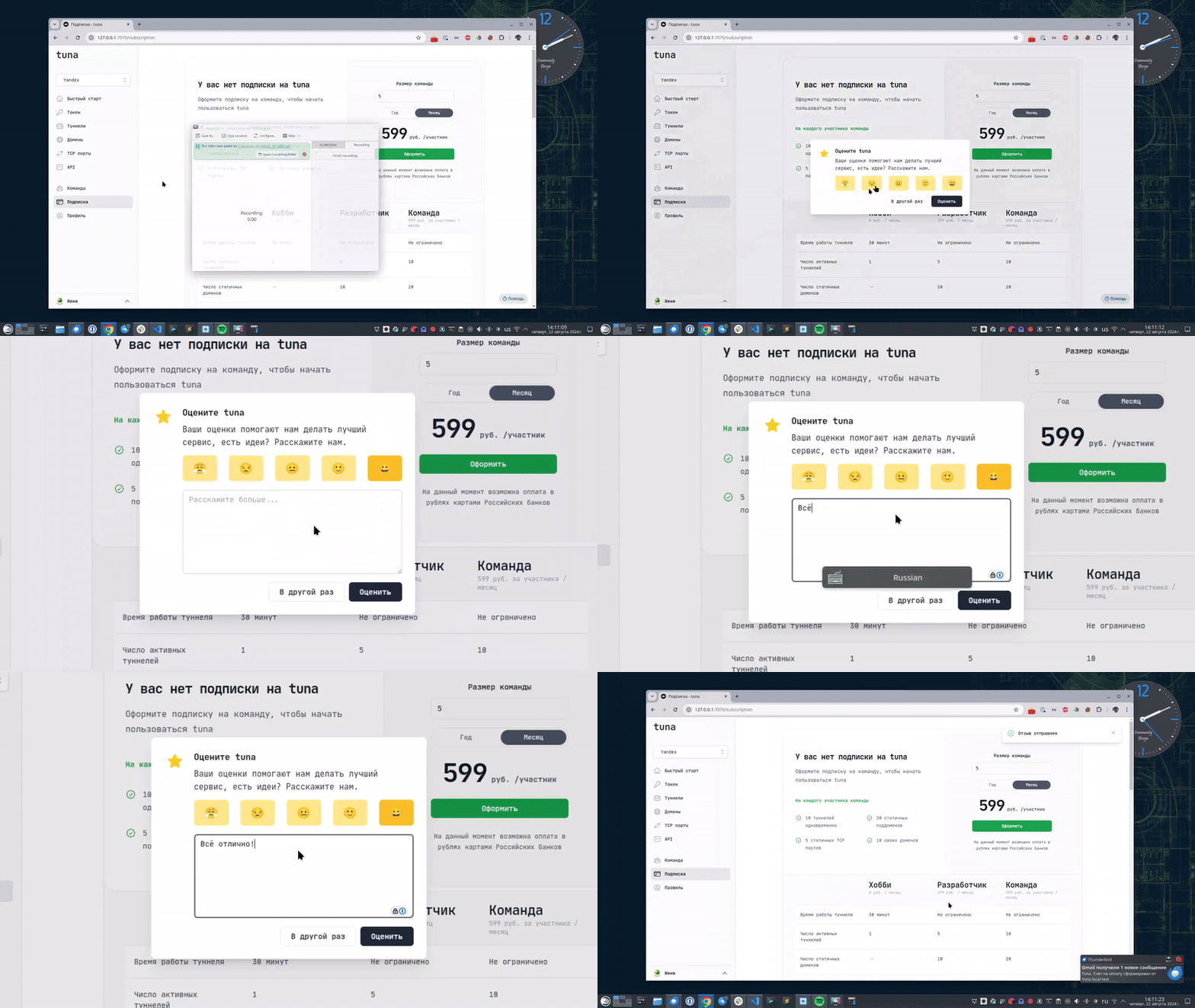
If you enjoy using Tuna, or on the contrary you are not happy with something, please leave feedback.
News
We announce new features and posts on our Telegram channel. Subscribe so you don't miss anything.
Help
We value our users and carefully review every request. If you have any problems with tuna, please contact us in one of the following ways: