Access requests
Sometimes access to a resource should not be granted automatically, but only after manual confirmation. For this, the policy has an Require admin approval option — the user will not get access until an admin approves their request.
How it works
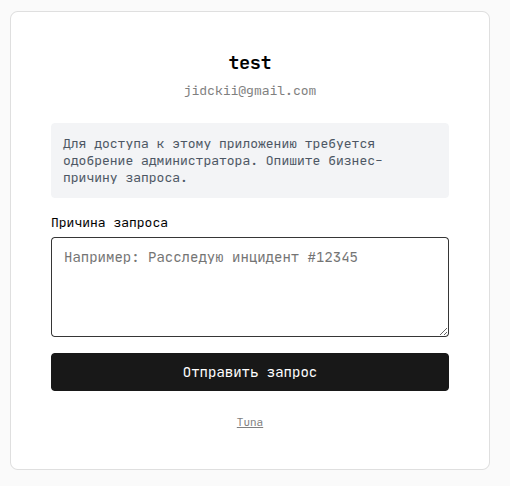
1. The user explains the reason
After authentication, instead of accessing the app, the user sees a form where they need to describe why they need access. This helps the admin make an informed decision.
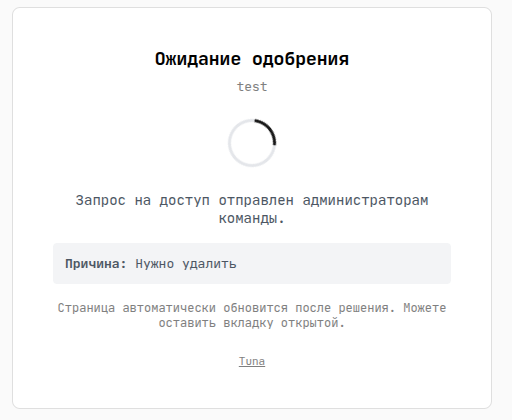
2. Waiting for a decision
After submitting the request, the user sees a waiting page. The tab can be left open — it will refresh automatically when the admin makes a decision.
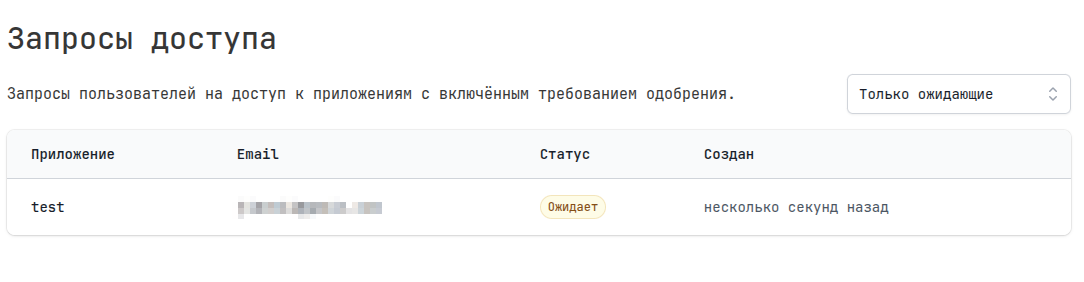
3. The admin makes a decision
All requests appear in the Access requests section. You can filter by status — pending only, approved, or rejected.
Clicking a request opens a detailed card with full context:
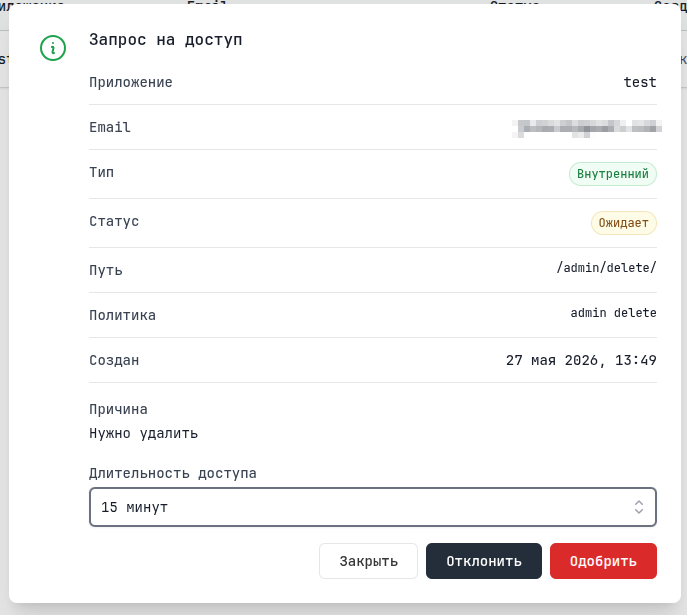
The admin can see who is requesting access, from where, to which path, which policy was triggered, and the reason the user provided. All that remains is to choose the access duration (from 15 minutes to unlimited) and click Approve or Reject.
Approved access is time-limited. Once it expires, the user will need to submit a new request.
My requests
Users can track the status of their requests on the Apps → Access requests page.