Mesh
Tuna Mesh connects your team's laptops, servers, and virtual machines into a private network. Each device gets a permanent address and a DNS name like laptop.tuna, and devices reach each other directly over any protocol and port. You don't need a public IP address or open ports.
A tunnel publishes one local service to the internet. Mesh is a closed network: only your team's devices can see each other in it, and nobody can reach them from outside.
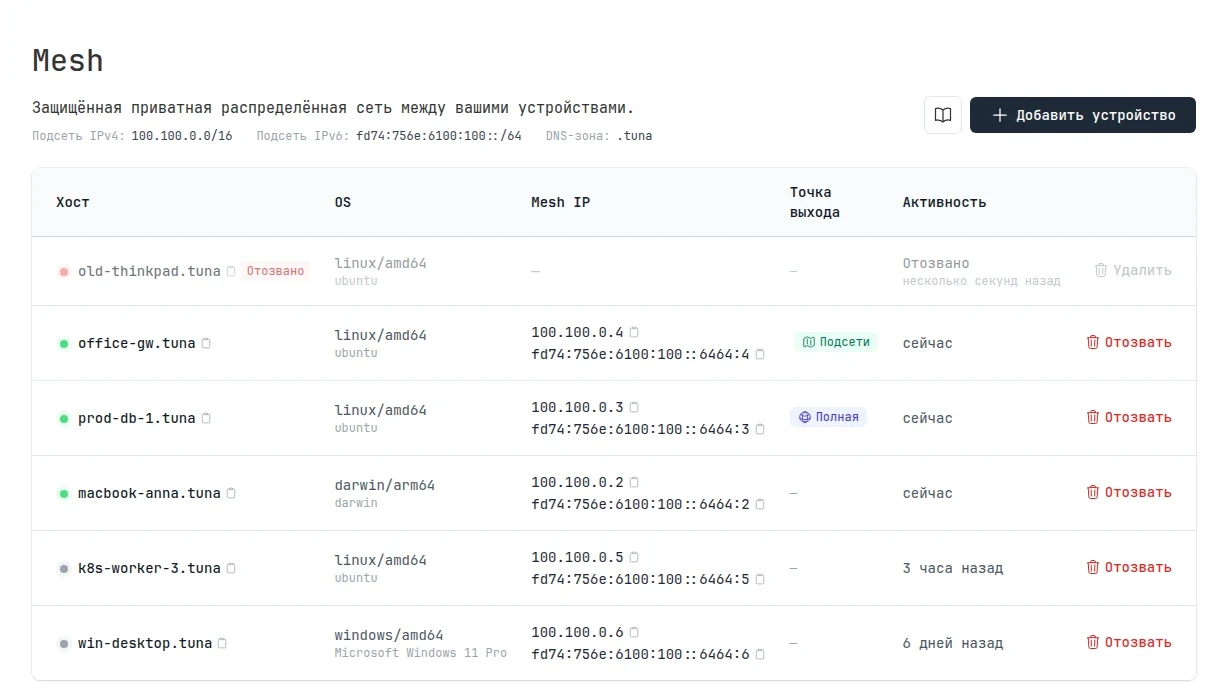
What else mesh can do:
- exit nodes — go out to the internet through another team device, for example a server in a specific country;
- subnets — open access to an office network through one device without installing the client on every host;
- access rules — define which devices can talk to each other and on which ports;
- revoking devices from the dashboard: the session drops immediately.
Traffic is encrypted with WireGuard. If the network blocks UDP, the client switches to a fallback transport over SSH on its own.
Requirements
- Linux, macOS, or Windows. Only Linux and macOS devices can share an exit node and subnets, but devices on all three systems can use them.
- The tuna client. We recommend version 0.38.0 or later, and tunad 0.1.2 or later.
- The
tunadservice. It configures a network interface, so it runs with root or administrator privileges. Thetuna meshcommands themselves run as a regular user and don't needsudo.
tunad doesn't run inside a Docker container; install it on the host.
Installing tunad
- Linux
- macOS
- Windows
The tunad package is in the same repository as tuna. Add the repository by following the installation guide and install the package:
# Debian, Ubuntu
sudo apt install -y tunad

# RHEL, Fedora
sudo dnf install -y tunad

# SUSE, openSUSE
sudo zypper install -y tunad
The package enables and starts tunad.service itself.
brew install yuccastream/tap/tunad
sudo tunad install
To manage the service, use sudo tunad status, sudo tunad restart, and sudo tunad uninstall. Logs are in /var/log/tunad.out.log and /var/log/tunad.err.log.
Download the tunad_x64.msi installer, or tunad_arm64.msi for ARM, and run it. The installer registers the service itself.
Connecting a device
With a browser
On your work computer, run:
tuna mesh login
The command opens a confirmation page in the browser. Check that the device name, OS, and IP address are yours, and click Connect. If the browser doesn't open, the CLI prints a link. You have 10 minutes to confirm.
After you confirm, the browser returns the result to the CLI at 127.0.0.1, so the browser must be open on the same computer. For a remote server you're connected to over SSH, use a connection token.
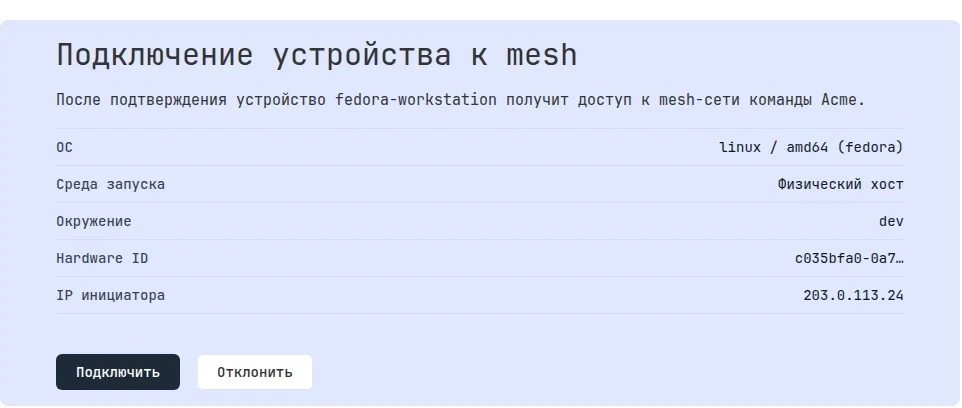
The device joins the team that is currently selected in the dashboard. If you belong to several teams, switch to the right one in the sidebar before you confirm.
Once confirmed, connect the device to the network:
tuna mesh up
A server without a browser
For servers, virtual machines, and CI, use a connection token:
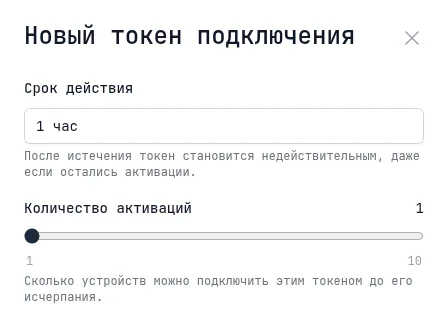
- In the dashboard, open Mesh → Connection tokens and click Create token.
- Choose a lifetime, from 1 hour to 1 day, and the number of activations, from 1 to 10. One token can connect several servers.
- Copy the token: it is shown only once.
On the server, run:
tuna mesh enroll <token>
tuna mesh up
You can also pass the token in the TUNA_MESH_ENROLL_TOKEN environment variable. When the lifetime runs out, the token stops working even if activations are left. Devices connected with a token belong to the person who created it.
Environment label
When you connect a device, you can give it an environment label, such as production or staging:
tuna mesh enroll <token> --env=production
Instead of the flag, you can use the TUNA_MESH_ENV variable; without it, the label is default. The label shows up in the device list, and a team admin can change it. For now it is only a label for convenience and doesn't affect access.
Addresses and names
Each device gets an IPv4 address from the 100.100.0.0/16 range and a paired IPv6 address from fd74:756e:6100:100::/64. The address is tied to the device and doesn't change when it reconnects. The range is the same for all teams, but team networks are isolated from each other.
The device name is its hostname in the .tuna zone, for example office-gw.tuna. If the name is taken, the server adds a suffix: laptop-1, laptop-2. You can't rename a device from the dashboard: to change the name, change the hostname and connect the device again.
Names work in any program:
ssh ubuntu@office-gw.tuna
psql -h prod-db-1.tuna -U app
curl http://k8s-worker-3.tuna:8080/healthz
tunad configures DNS only for the .tuna zone; all other queries go through your usual DNS server.
Status and diagnostics
| Command | What it shows |
|---|---|
tuna mesh status | network state, device name and addresses, transport, exit node, shared and received subnets |
tuna mesh ip | device addresses; -4 or -6 shows only one |
tuna mesh peers | team devices and their state |
tuna mesh trace <device> | the path to a device and the latency |
tuna mesh debug trace <from> <to> | whether access rules allow a connection, without sending real traffic |
For scripts, status, peers, and debug trace have a --json flag.
After a reboot, the tunad service brings the network back up with the same settings if it was enabled.
Disconnecting
tuna mesh down disconnects the device from the network but keeps it in the team: run tuna mesh up to connect again.
tuna mesh logout disconnects the device, revokes it, and deletes the keys from the computer. After that, you can connect the device again, including as a different user.
You can also revoke a device in the dashboard: Mesh → My devices → Revoke. The session drops immediately. A team admin can revoke any device in Team → Devices.
Plans
| Plan | Devices per member | Exit nodes and subnets | Custom access rules |
|---|---|---|---|
| Starter | 5 | use others' only | no |
| Pro | 10 | share and use | no |
| Legend | 100 | share and use | up to 100 rules |
Revoked devices don't count toward the limit.
Without custom access rules, devices of the same user see each other, but devices of different members don't. For colleagues to connect to each other's devices, you need the Legend plan and an allow rule.
Beta limitations
- You choose the exit node manually; there is no automatic selection.
- A device can't share an exit node and use another device as an exit node at the same time.
- If you run
tuna mesh upwithout the--advertise-*flags, the previously advertised exit node and subnets are withdrawn. Repeat the flags every time. - Only one OS user on a computer can use the tunad service — the one who connected the device first. Another user is refused until the first one runs
tuna mesh logout. - If you clone a virtual machine, reinstall the OS, or replace the motherboard, you need to connect the device again.
- A device certificate is valid for 7 days and renews on its own while the device is on. If the device was off for longer, connect it again with
tuna mesh loginortuna mesh enroll. In this case, thetuna mesh down && tuna mesh uphint in thetuna mesh statusoutput won't help. - The mesh addresses
100.100.0.0/16are part of the range that Tailscale uses. If both run on a device, the routes may overlap.