Integrations
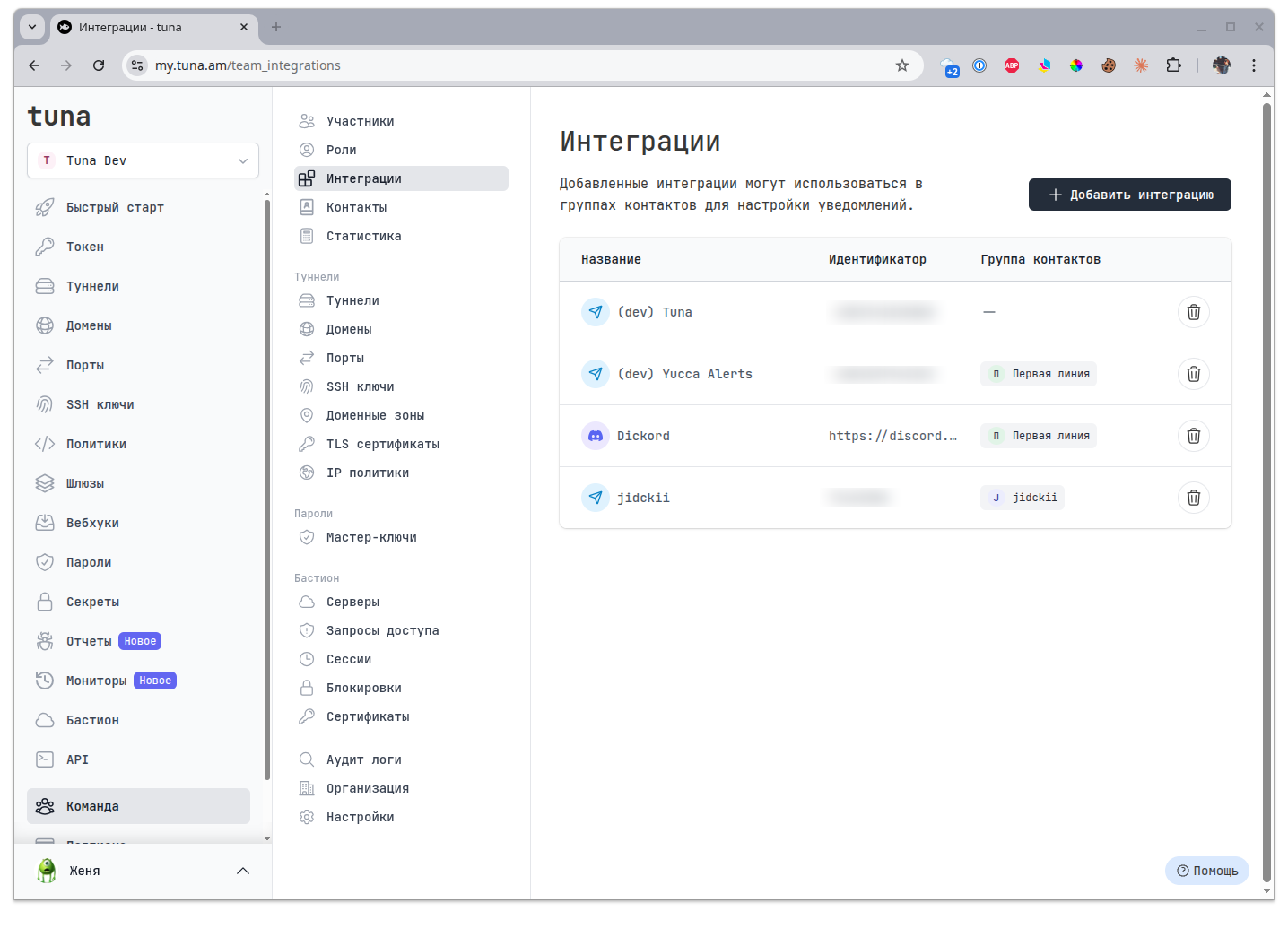
Integrations let you send notifications about monitor and report events to various messengers and alerting systems.
Available only with a subscription on the Legend plan.
Supported integrations
| Integration | Description |
|---|---|
| Telegram | Notifications to a Telegram chat or group |
| Slack | Notifications to a Slack channel via Webhook |
| Discord | Notifications to a Discord channel via Webhook |
| VK Teams | Notifications to VK Teams (formerly MyTeam) |
| Google Chat | Notifications to Google Chat via Webhook |
| Webhook | Arbitrary HTTP Webhook |
Telegram
Send notifications to a Telegram chat or group.
Setup
- Open Telegram and find the bot @TunaAmBot
- Start a dialog with the bot using
/start - For a group chat — add the bot to the group and run
/start@TunaAmBot - The bot will send a confirmation link
- Open the link — the integration will be created automatically
Parameters
| Parameter | Description |
|---|---|
| Name | Integration name for identification |
| Chat ID | Chat identifier (filled in automatically) |
Slack
Send notifications to a Slack channel via Incoming Webhook.
Setup
- Go to your Slack workspace settings
- Create a new Incoming Webhook: Slack documentation
- Copy the webhook URL
- In Tuna, create a Slack integration and paste the URL
Parameters
| Parameter | Description |
|---|---|
| Name | Integration name for identification |
| Channel | Channel name (e.g., #alerts) |
| Webhook URL | Incoming Webhook URL |
Discord
Send notifications to a Discord channel via Webhook.
Setup
- Open the Discord channel settings
- Go to Integrations → Webhooks
- Create a new Webhook: Discord documentation
- Copy the webhook URL
- In Tuna, create a Discord integration and paste the URL
Parameters
| Parameter | Description |
|---|---|
| Name | Integration name for identification |
| Webhook URL | Discord Webhook URL |
VK Teams
Send notifications to VK Teams (formerly MyTeam).
Setup
- Open VK Teams and find the bot @metabot
- Create a new bot and obtain a token
- Get the Chat ID of the chat where notifications will be sent
- In Tuna, create a VK Teams integration
More info: Getting a VK Teams token
Parameters
| Parameter | Description |
|---|---|
| Name | Integration name for identification |
| Chat ID | Chat identifier |
| Token | Bot token (format: 000.0000000000.0000000000:0000000000) |
Google Chat
Send notifications to Google Chat via Webhook.
Setup
- Open the desired chat in Google Chat
- Go to chat settings → Webhooks
- Create a new Webhook: Google documentation
- Copy the webhook URL
- In Tuna, create a Google Chat integration and paste the URL
Parameters
| Parameter | Description |
|---|---|
| Name | Integration name for identification |
| Webhook URL | Google Chat Webhook URL |
Webhook (Generic)
Send notifications to an arbitrary HTTP endpoint.
Setup
- Create an endpoint on your server to receive notifications
- In Tuna, create a Webhook integration and specify the URL
Parameters
| Parameter | Description |
|---|---|
| Name | Integration name for identification |
| Webhook URL | URL of your endpoint |
Request format
When an event occurs, Tuna sends a POST request with a JSON body:
{
  "monitor_id": "2aB3cD4eF5gH6iJ7kL8m",
  "monitor_name": "My Service",
  "event_type": "fail",
  "message": "Monitor is down",
  "timestamp": "2024-01-15T10:30:00Z"
}
Testing an integration
Before saving an integration, you can send a test message to verify the configuration is correct.
- Fill in the integration parameters
- Click the Test button
- Check that the message arrives in the target service
- Save the integration
Use in contacts
Once an integration is created, it can be added to a contact group. When a monitor event occurs, notifications will be sent to all integrations added to the selected contact groups.