HTTP tunnel
Starting with version 0.36.0, tuna shows a full-screen interface in the terminal with a live request feed, request details and replay.
An HTTP tunnel exposes a website, API, GraphQL or WebSocket server running locally to the internet. Tunnels work on all plans with no time limit. The free plan includes a dynamic address and one free permanent subdomain.
Quick start
tuna http 8080
The console shows a public HTTPS address like https://4l7mqf-212-49-103-2.ru.tuna.am — requests to it reach the application on localhost:8080. Next to it is a link to the request inspector, where you can see every request and response.
All flags with hints are in the built-in help:
tuna http --help
Every flag has an environment variable — see the flag reference.
Common recipes
Flags can be freely combined. A few typical tasks:
| Task | Command |
|---|---|
| Show a website to a client behind a password at a permanent address | tuna http 3000 --subdomain=brave-otter-4821 --basic-auth="client:s3cret" |
| Accept GitLab webhooks only with a valid signature | tuna http 8080 --subdomain=brave-otter-4821 --verify-webhook=gitlab --verify-webhook-secret=s3cret |
| Expose an API to a frontend on another domain | tuna http 8080 --cors --key-auth="dev-key" |
| Check a layout on a phone | tuna http 5173 --qr |
| Share a folder with a colleague | tuna http --file-server ./share --basic-auth="team:s3cret" |
Expose a service that checks the Host header | tuna http 11434 --request-header="host:localhost:11434" |
| Publish a built SPA (React, Vue) | tuna http --file-server-spa ./dist |
In Docker, CI and systemd it is easier to pass the same settings as environment variables:
TUNA_TOKEN=tt_*** TUNA_SUBDOMAIN=brave-otter-4821 TUNA_INSPECT=false tuna http 8080
What you can publish
The first argument of tuna http is the address of the application to expose:
| Argument | Where the request goes |
|---|---|
8080 | http://localhost:8080 |
localhost:8080, 10.0.0.1:8080 | the given host and port, including another machine on your network |
https://localhost:443 | an application that serves HTTPS itself |
unix:///run/gunicorn.sock | an application on a unix socket |
Instead of an address you can serve a directory with a built-in server: --file-server, --file-server-spa or --webdav.
HTTPS application
tuna http https://localhost:443
By default the application's certificate is not verified, so a self-signed one works too. To enable verification, use --tls-skip-verify=false.
Unix socket
If the application accepts HTTP on a unix socket, like gunicorn does, pass the socket path with the unix:// prefix:
tuna http unix:///run/gunicorn.sock
The inspector, request replay and traffic policies work the same way as with a port. TLS to an application behind a socket is not supported, and --tls-skip-verify does not apply to it. If the application does not respond, the 502 error page shows the socket path (unix:///run/gunicorn.sock) instead of localhost with a port.
Path requirements, permissions and the behavior when the socket is missing are the same as for a TCP tunnel.
File server
Serves files from a directory and shows a file listing:
tuna http --file-server ./
Single page application (SPA)
For built single page applications (React, Vue, Angular): any non-existent path returns index.html, so client-side routing works.
tuna http --file-server-spa ./dist
WebDAV
The directory can be mounted as a network drive over WebDAV, with read and write access:
tuna http --webdav ./
Tunnel address
| Address | How to get it | Plan |
|---|---|---|
Dynamic, 4l7mqf-212-49-103-2.ru.tuna.am | no flags | any |
Free permanent, brave-otter-4821.ru.tuna.am | --subdomain=<your-subdomain> | any, one per account |
Any free subdomain, billing.ru.tuna.am | --subdomain=billing | subscription |
Custom domain, api.example.com | --domain=api.example.com | subscription |
On the free plan, a browser visitor sees a warning page on the first visit saying that the site is served through tuna. It does not affect API clients and webhooks, and it can be skipped with the tuna-skip-browser-warning header. Why this is needed and how we fight phishing and malicious content in general is described on the Abuse and Complaints page.
Dynamic address
Assigned automatically on every start and changes when the tunnel reconnects. The address follows the <random-part>-<your-IP>.<location>.tuna.am scheme: the source IP address is visible in the link, so malicious content cannot be hosted anonymously — see Anonymity. The permanent subdomain does not contain your IP address. Good for a one-off demo or debugging. If you need an address that does not change — for webhooks, payment callbacks, a browser bookmark — use a permanent subdomain.
Free permanent subdomain
Every user gets one permanent subdomain — for free and on any plan. The name is assigned randomly in the <adjective>-<noun>-<4 digits> format, for example brave-otter-4821, and is the same in all locations: brave-otter-4821.ru.tuna.am and brave-otter-4821.nl.tuna.am.
You can find your subdomain in the dashboard: it is labeled "Free" and comes with a ready-to-use launch command. The client also suggests it when you start a tunnel without flags:
Your permanent free domain: brave-otter-4821.ru.tuna.am. Use it with --subdomain=brave-otter-4821
By default a tunnel still gets a dynamic address — the permanent subdomain has to be specified explicitly:
tuna http 8080 --subdomain=brave-otter-4821
In another location:
tuna http 8080 --subdomain=brave-otter-4821 --location=nl
Or by the full name:
tuna http 8080 --domain=brave-otter-4821.ru.tuna.am
The subdomain is bound to your account, so the client must be authorized with your token. Save it once with tuna login or tuna config save-token <TOKEN> (the token is on a separate page), or pass it via the TUNA_TOKEN environment variable — for example, in Docker and CI. Without a token, or with another account's token, the subdomain will not work.
- You cannot choose or change the name — a subdomain with any name is available with a subscription.
- The subdomain cannot be deleted or transferred to another user,
tuna domain clearskips it. - The subdomain is kept when you change plans and does not count towards the subscription's domain limit.
- If you registered earlier, the subdomain appears the first time you open the Domains section or start a tunnel without flags.
Reserved subdomain
With a subscription you can take any free subdomain — the address stays the same after the tunnel restarts:
tuna http 8080 --subdomain=billing
The same via an environment variable:
TUNA_SUBDOMAIN="billing" tuna http 8080
The subdomain is reserved automatically on the first start with the flag. All your domains are in the dashboard.
The Domain already reserved error means the subdomain in this location is already taken by another user — choose a different name.
Custom domain
Add your domain following the instructions in the dashboard, after DNS verification and Let's Encrypt certificate issuance you can use it:
tuna http 8080 --domain=my-api-project.example.com
Step by step — in the article Connecting your own domain.
Location
The tunnel is created in the ru location unless specified otherwise. Pick the one closest to your site's users:
tuna http 8080 --location=nl
QR code
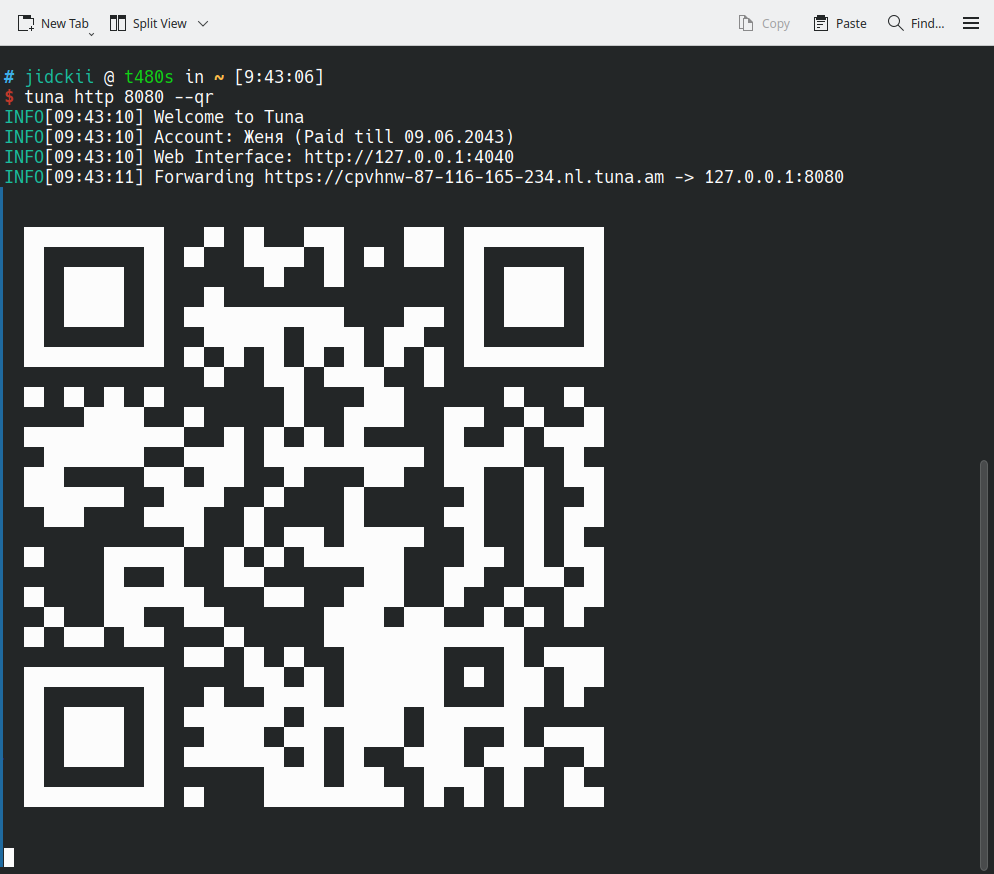
The --qr flag prints a QR code with the tunnel link in the console — handy for opening the site on a phone.
tuna http 5173 --qr
Access protection
The tunnel is reachable from the whole internet. The checks below run in the tuna client — a request that fails them never reaches the application.
| Flag | Who gets through |
|---|---|
--basic-auth | those who know the login and password |
--key-auth | requests with a key in the X-Token header |
--cidr-allow, --cidr-deny | requests from allowed subnets |
--ua-allow, --ua-deny | requests with a matching User-Agent |
--verify-webhook | webhooks with a valid signature |
--rate-limit | no more than N requests per second |
--https-redirect | HTTPS only, HTTP is redirected |
List flags (--basic-auth, --key-auth, --cidr-*, --ua-*, --*-header) can be repeated. In environment variables, separate values with commas.
Password (basic auth)
The browser shows a login and password prompt:
tuna http 8080 --basic-auth="login:password"
Several users — repeat the flag:
tuna http 8080 --basic-auth="anna:pass1" --basic-auth="ivan:pass2"
From a script:
curl -u login:password https://brave-otter-4821.ru.tuna.am/
Key in a header (API token)
For APIs and services without a browser. A request gets through only if the X-Token header contains one of the keys:
tuna http 8080 --key-auth="my-secret-key"
curl -H "X-Token: my-secret-key" https://brave-otter-4821.ru.tuna.am/
Access by IP subnet
An allow list of subnets in CIDR format — everyone else is denied:
tuna http 8080 --cidr-allow="203.0.113.0/24" --cidr-allow="198.51.100.7/32"
Or, the other way around, deny specific subnets:
tuna http 8080 --cidr-deny="10.0.0.1/32"
Access by User-Agent
Matching is by substring. Deny curl and allow everyone else:
tuna http 8080 --ua-deny=curl
Allow only Chrome:
tuna http 8080 --ua-allow=Chrome
User-Agent is easy to fake — use this filter against bots and random scanners, not as protection.
Webhook signature verification
tuna lets through only webhooks signed with the secret you set at the provider. Other requests get 401 Unauthorized.
tuna http 8080 --verify-webhook=gitlab --verify-webhook-secret=1234
Supported providers: gitlab, github, sentry, linear. For other services and more complex logic, use traffic policies.
Request rate limit
Protects the local application from overload — no more than N requests per second:
tuna http 8080 --rate-limit=2
When the limit is exceeded, the client gets 429 Too Many Requests.
HTTPS only
By default the tunnel answers over both HTTP and HTTPS. With --https-redirect, HTTP requests are redirected to HTTPS:
tuna http 8080 --https-redirect
Headers and CORS
Request headers
Add or replace a header before the request reaches the application. A common case is a service that only accepts requests with its "own" Host, like Ollama or dev servers:
tuna http 11434 --request-header="host:localhost:11434"
Response headers
Add or replace a header in the response to the client:
tuna http 8080 --response-header="env:test" --response-header="x-robots-tag:noindex"
CORS
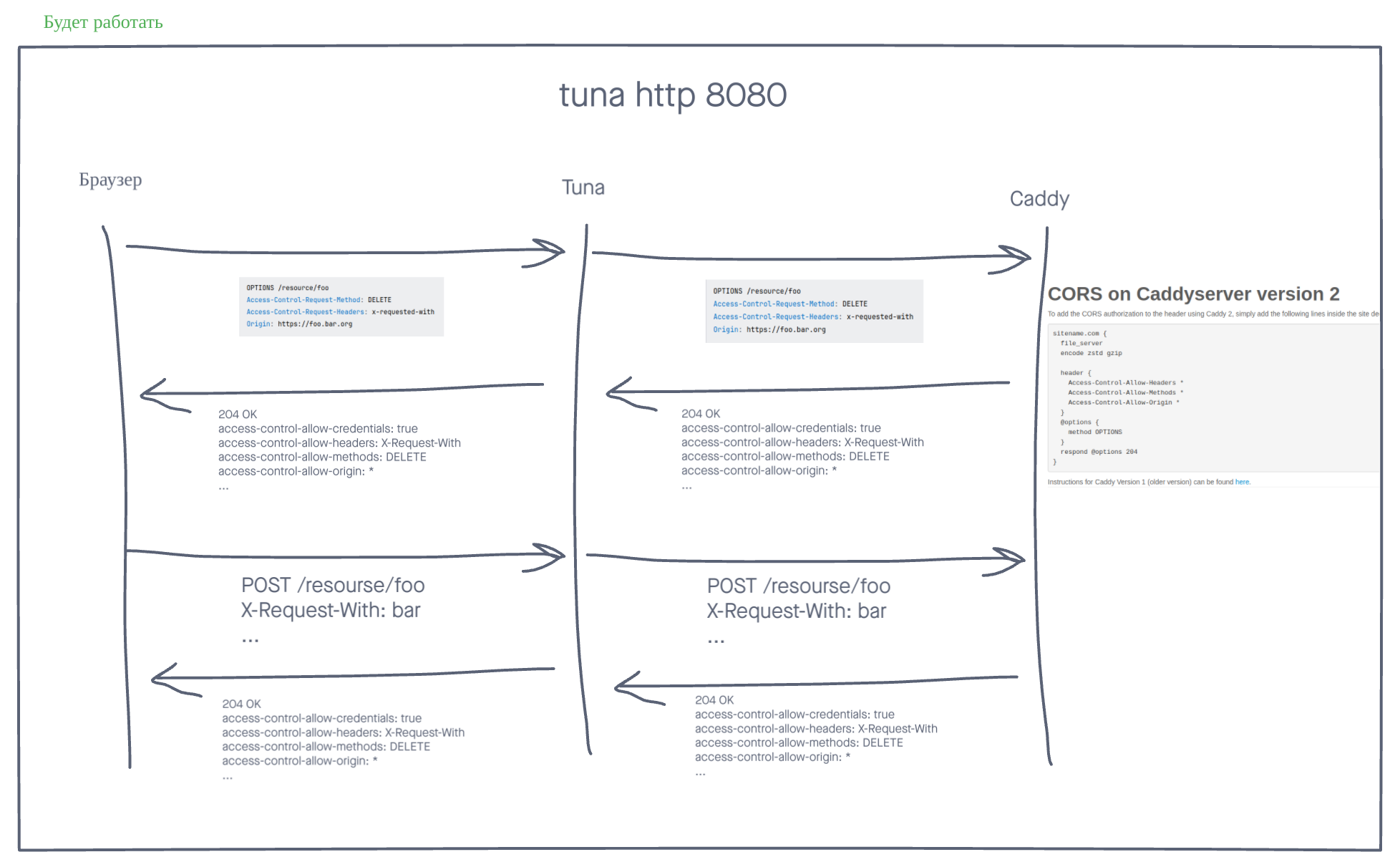
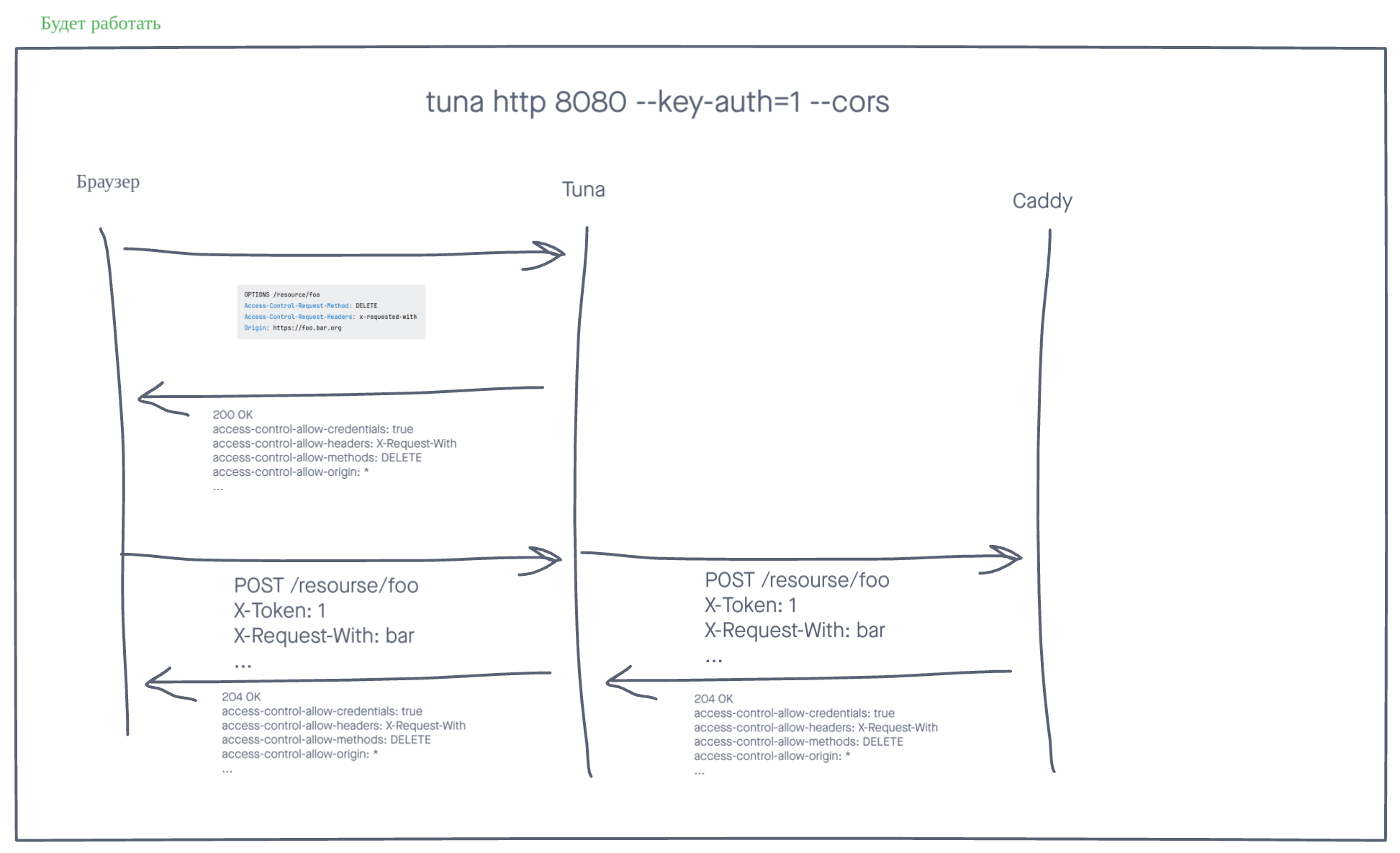
The --cors flag or the TUNA_CORS=true variable adds CORS headers to all responses. By default the following headers are set:
Access-Control-Allow-Credentials: true
Access-Control-Allow-Headers: Accept, Accept-Language, Content-Language, Origin
Access-Control-Allow-Methods: GET, HEAD, POST
Access-Control-Allow-Origin: *
They can be overridden with the --response-header flag.
OPTIONS requests are answered automatically with 200 OK without reaching the proxied server.
If you have trouble with CORS, we recommend reading this article. We also recommend CORS Tester for checking your CORS headers.
More features
Traffic policies
When flags are not enough — path routing, conditions, custom responses — describe the rules in a traffic policy file. By default .tuna.yml from the current directory is used, another path can be set with --policy-file. The --policy-url flag loads the rules from a URL. A policy error stops the tunnel from starting, see Policy errors.
Request inspector
Enabled by default at http://127.0.0.1:4040. The inspector keeps requests in memory, so on servers and embedded devices it is better to turn it off: --inspect=false. More on the inspector page.
Bug reports
The --capture-key flag embeds the reports widget into HTML pages: a tester can send a bug with a screenshot without any changes to the site's code.
tuna http 3000 --capture-key=YOUR_CAPTURE_KEY
Token
Usually the token is saved once with tuna login. You can specify another token with the --token flag or the TUNA_TOKEN variable, overriding follows the configuration ordering:
tuna http 8080 --token=tt_***
Flag reference
| Flag | Environment variable | Description |
|---|---|---|
-s, --subdomain | TUNA_SUBDOMAIN | Subdomain in the tuna.am zone |
-d, --domain | TUNA_DOMAIN | Full domain name |
-l, --location | TUNA_LOCATION | Location: ru (default), nl |
-f, --file-server | TUNA_FILE_SERVER | Serve a directory |
-F, --file-server-spa | TUNA_FILE_SERVER_SPA | Serve an SPA |
--webdav | TUNA_WEBDAV | WebDAV server for a directory |
--basic-auth | TUNA_BASIC_AUTH | Login and password, login:password |
--key-auth | TUNA_KEY_AUTH | Key in the X-Token header |
--cidr-allow | TUNA_CIDR_ALLOW | Allowed subnets |
--cidr-deny | TUNA_CIDR_DENY | Denied subnets |
--ua-allow | TUNA_UA_ALLOW | Allowed User-Agents |
--ua-deny | TUNA_UA_DENY | Denied User-Agents |
--verify-webhook | TUNA_VERIFY_WEBHOOK | Webhook provider |
--verify-webhook-secret | TUNA_VERIFY_WEBHOOK_SECRET | Webhook signing secret |
--rate-limit | TUNA_RATE_LIMIT | Requests per second |
--https-redirect | TUNA_HTTPS_REDIRECT | Redirect HTTP to HTTPS |
--request-header | TUNA_REQUEST_HEADER | Request header, key:value |
--response-header | TUNA_RESPONSE_HEADER | Response header, key:value |
--cors | TUNA_CORS | CORS headers and OPTIONS handling |
--policy-file | TUNA_POLICY_FILE | Policy file, .tuna.yml by default |
--policy-url | TUNA_POLICY_URL | Policy URL, https only |
--inspect | TUNA_INSPECT | Inspector, enabled by default |
--tls-skip-verify | TUNA_TLS_SKIP_VERIFY | Skip certificate verification of the application, true by default |
--qr | TUNA_QR_CODE | QR code with the link |
--capture-key | TUNA_CAPTURE_KEY | Reports widget |
--token | TUNA_TOKEN | Authorization token |
Behavior
Hop-by-hop
NOT supported are hop-by-hop headers except for the Connection: upgrade header, which is necessary for Websocket connections.
WebSocket
Supports the protocol with bidirectional connection between client (e.g., browser) and server, no additional settings are required. The transmitted data will NOT be displayed in the inspector.
Server-sent events
Supports the technology of sending notifications from the server to the web browser, no additional settings are required. The transmitted data will NOT be displayed in the inspector.
With the inspector enabled, it's important that the client sends the Accept: text/event-stream header, otherwise the inspector will try to intercept the request and this will cause delays. Browsers send this header by default.
HTTP and HTTPS
When starting the tunnel, an HTTPS link is displayed, but you can also access it via HTTP. You can prohibit HTTP access by adding the --https-redirect flag.
Flag and rule processing order
Flags affecting traffic processing behavior are always executed in a specific sequence, regardless of the order they are passed in the arguments.
- https-redirect
- cors
- cidr-allow
- cidr-deny
- ua-allow
- ua-deny
- rate-limit
- key-auth
- basic-auth
- policy-file / policy-url
- verify-webhook
- request-header
- response-header
Managing CORS headers yourself
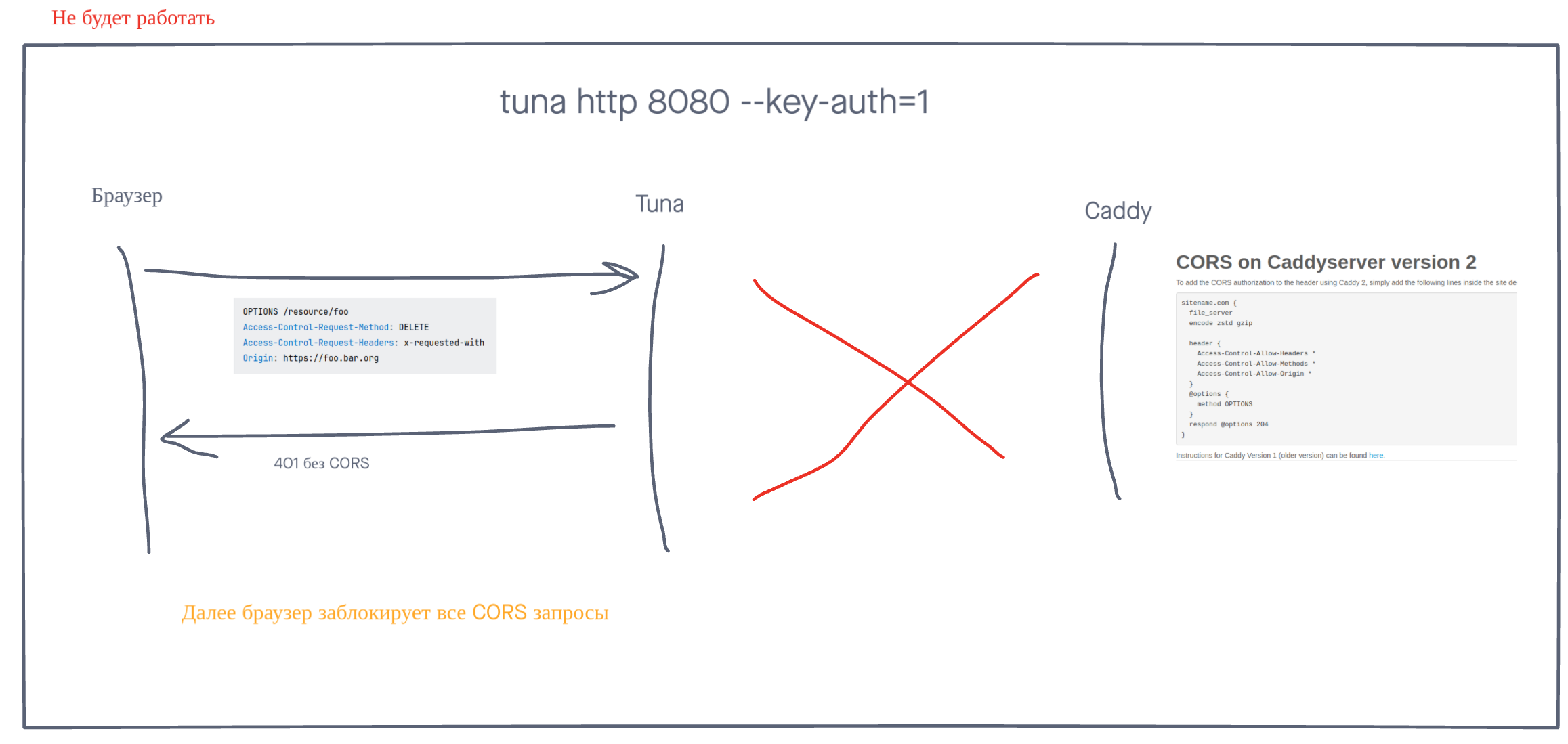
If you want to manage CORS headers yourself on the downstream server and at the same time use authorization in tuna with --basic-auth or --key-auth.
Then Preflight requests - will not work, because these OPTIONS requests do not contain Authorization, X-Token and any other specific headers.
Solution to choose:
- Do not use authorization in tuna.
- Manage CORS headers in tuna, not yourself.
- Handle
OPTIONSand authorization separately using more flexible traffic policies.