Creating a Vault
Click Create Master Key, then copy it and save it in a safe place (preferably write it on paper) and never share it with anyone under any circumstances.
If you lose your Master Key, it will be impossible to recover access to your passwords.
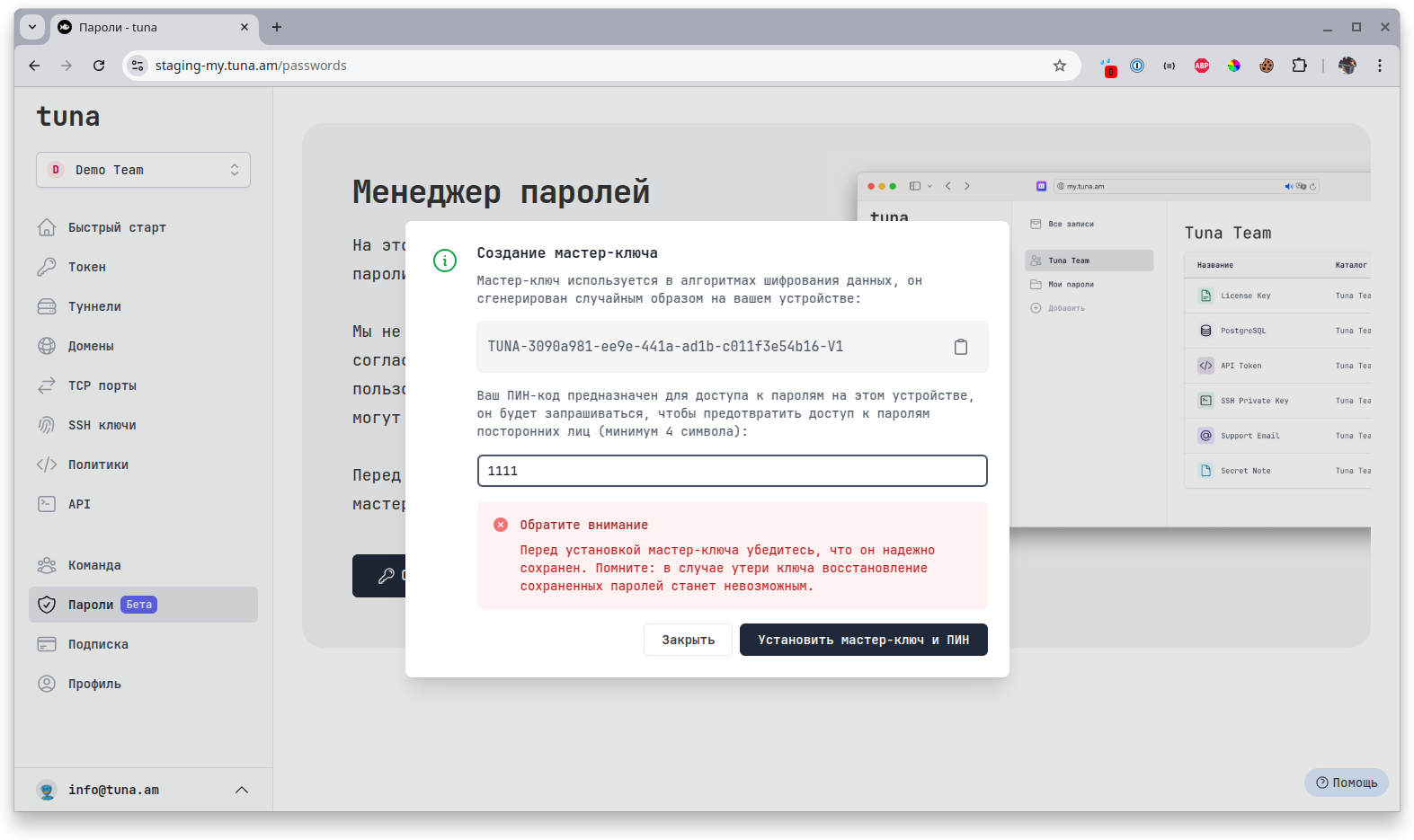
For convenient work with the vault in the current browser session, enter a short PIN code - any string of 4 or more characters. The PIN code is unique only within the session; you can use different PIN codes in different browsers or on different devices. The Master Key will be encrypted with this PIN + a unique salt of the current session. The Master Key encrypted in this way will be saved in the browser's localStorage, and you won't need to enter the Master Key every time during the entire session lifetime.
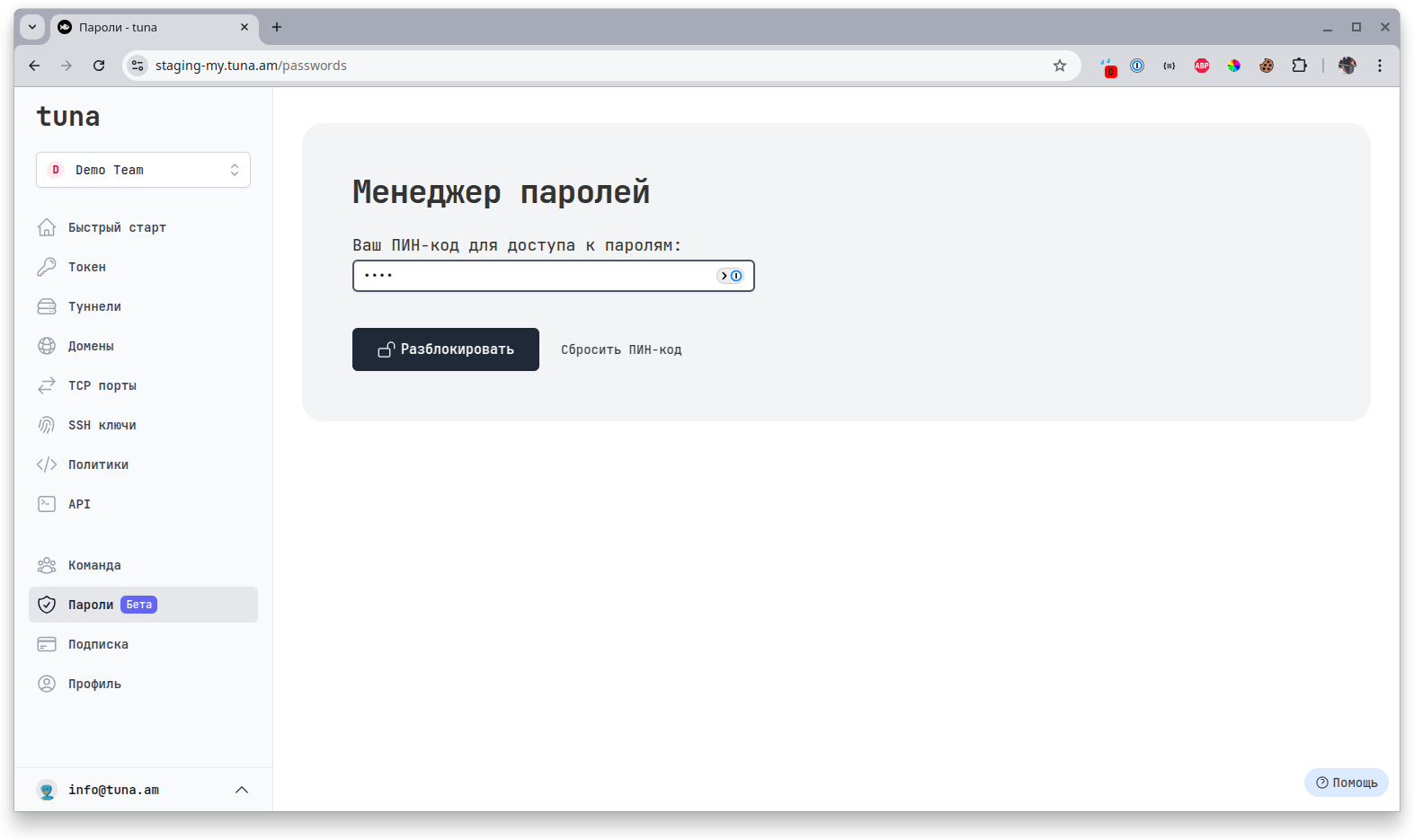
Access to passwords will be automatically locked after 5 seconds when navigating to any other section of the Tuna website, another browser tab, or program window. When returning to the Password Manager section, you will need to enter the previously entered PIN. If you forgot your PIN, you can reset it, re-enter the Master Key, and set a new PIN. When logging out of your account (closing the session), all data from localStorage is deleted.
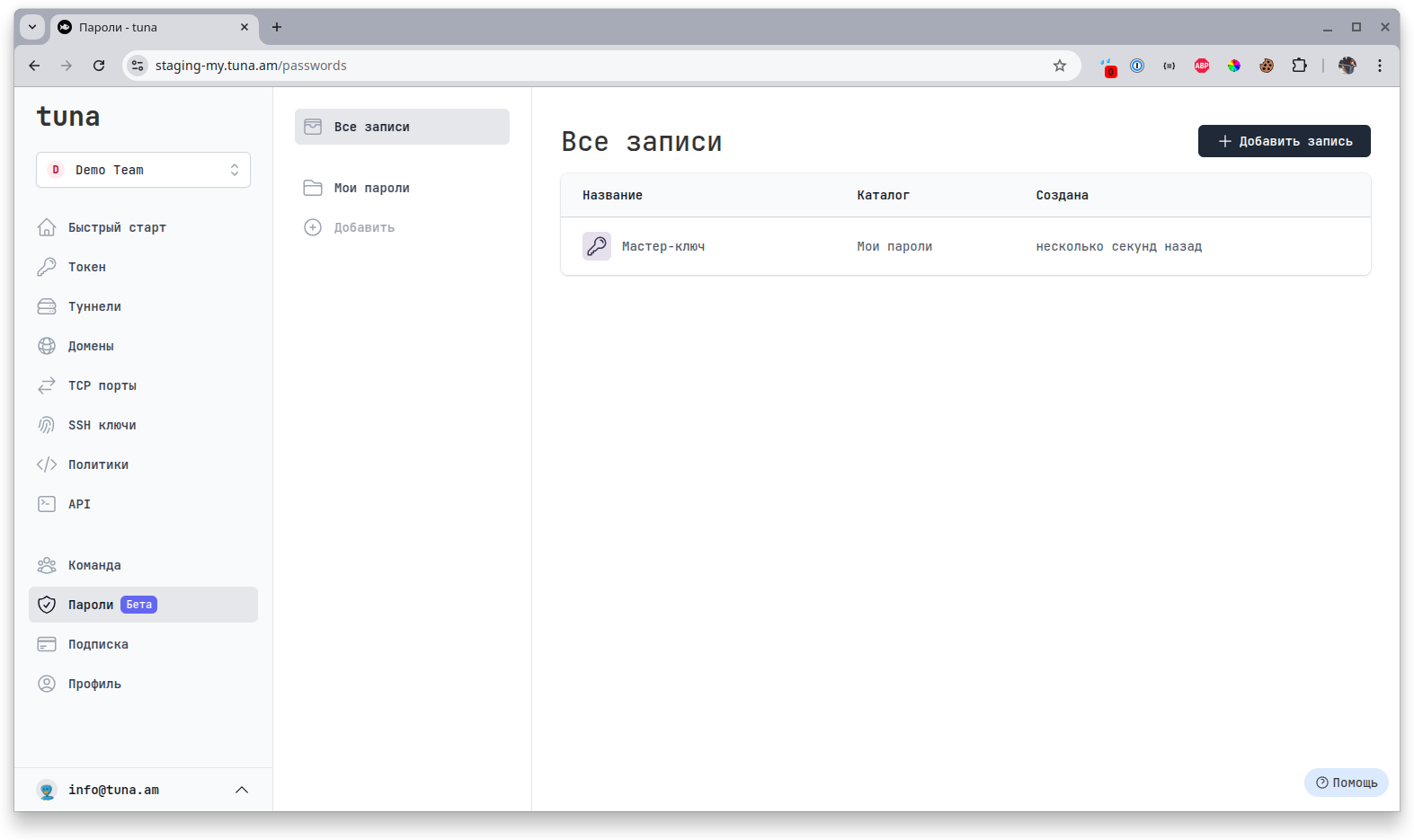
After initialization, the Master Key will also be saved inside the vault as a password in the My Passwords folder. This folder differs from others in that it cannot be shared with other team members.