Tuna Desktop
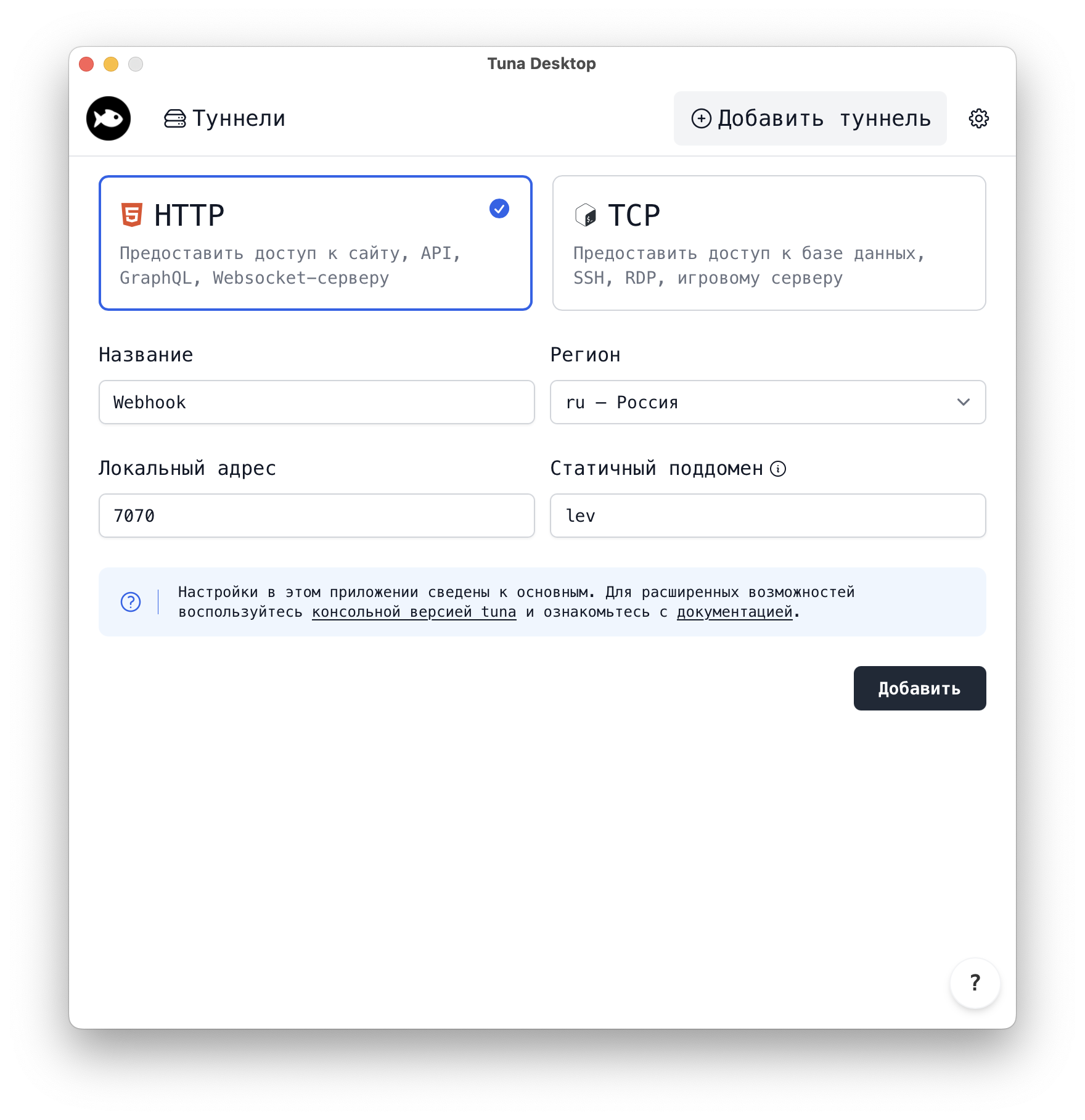
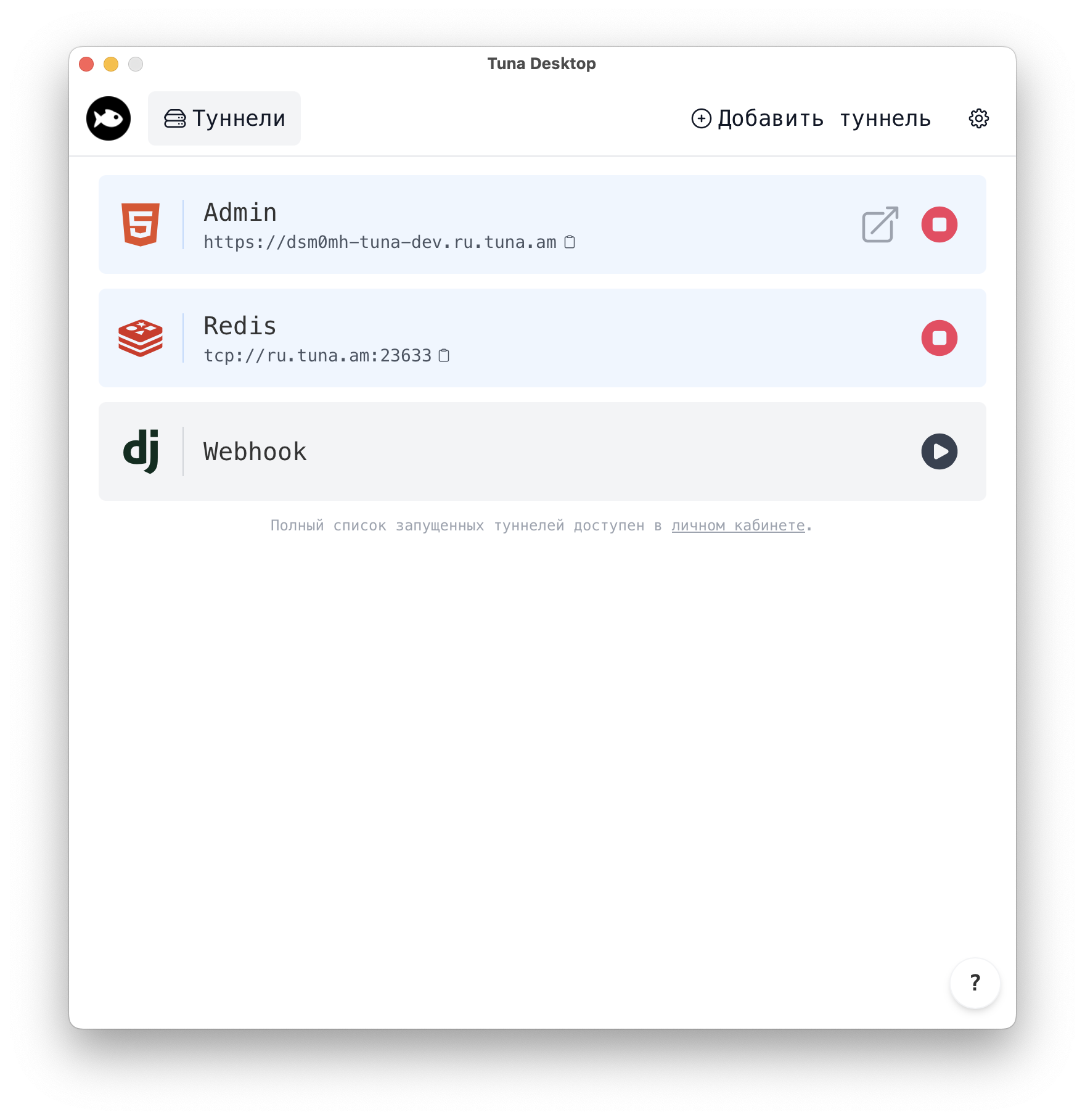
A detailed application overview is available in the blog.
Installation
- Windows
- macOS
- Linux
Download and install the full or portable version.
🖌 Authenticity verification
Starting from version v0.1.11, all artifacts are signed using cosign. To verify the originality of the archive, install the cosign client, download the public key, and perform the verification.
winget install sigstore.cosign
# installer
Invoke-WebRequest -Uri "https://releases.tuna.am/desktop/latest/tuna-desktop_windows-amd64_installer_latest.zip" -OutFile "tuna-desktop_windows-amd64_installer_latest.zip"
Invoke-WebRequest -Uri "https://releases.tuna.am/desktop/latest/tuna-desktop_windows-amd64_installer_latest.zip.bundle" -OutFile "tuna-desktop_windows-amd64_installer_latest.zip.bundle"
cosign.exe verify-blob --bundle=tuna-desktop_windows-amd64_installer_latest.zip.bundle tuna-desktop_windows-amd64_installer_latest.zip
# portable
Invoke-WebRequest -Uri "https://releases.tuna.am/desktop/latest/tuna-desktop_windows-amd64_portable_latest.zip" -OutFile "tuna-desktop_windows-amd64_portable_latest.zip"
Invoke-WebRequest -Uri "https://releases.tuna.am/desktop/latest/tuna-desktop_windows-amd64_portable_latest.zip.bundle" -OutFile "tuna-desktop_windows-amd64_portable_latest.zip.bundle"
cosign.exe verify-blob --bundle=tuna-desktop_windows-amd64_portable_latest.zip.bundle tuna-desktop_windows-amd64_portable_latest.zip
Download and install the macOS version.

🖌 Authenticity verification
Starting from version v0.1.11, all artifacts are signed using cosign. To verify the originality of the archive, install the cosign client, download the public key, and perform the verification.
brew install cosign
curl -sSLf -O https://releases.tuna.am/desktop/latest/tuna-desktop_darwin-universal_latest.dmg.bundle -O https://releases.tuna.am/desktop/latest/tuna-desktop_darwin-universal_latest.dmg
cosign verify-blob --bundle=tuna-desktop_darwin-universal_latest.dmg.bundle tuna-desktop_darwin-universal_latest.dmg
Installation using script
Run the command in the terminal:
- curl
- wget
sh -c "$(curl -sSLf https://releases.tuna.am/desktop/get.sh)"
sh -c "$(wget -qO- https://releases.tuna.am/desktop/get.sh)"
The script will detect your distribution, add the repository, and install the package.
Install from the repository or download the package.
- Debian/Ubuntu
- SUSE/OpenSUSE
- RHEL/Fedora
- ALT Linux
- Arch Linux
For Debian and based distributions (Ubuntu, Mint, and others), run the following commands in the terminal:
sudo apt update
sudo apt install -y ca-certificates curl gnupg
curl -fsSL https://repo.tuna.am/apt/gpg.key | sudo gpg --dearmor --batch --yes -o /etc/apt/trusted.gpg.d/tuna.gpg
echo 'deb [signed-by=/etc/apt/trusted.gpg.d/tuna.gpg] https://repo.tuna.am/apt/ /' | sudo tee /etc/apt/sources.list.d/tuna.list
sudo apt update
sudo apt install -y tuna-desktop
The repository contains builds for Debian 12+ / Ubuntu 22.04+
For older OS (Debian 11- / Ubuntu 20.04-)
Older versions depend on libwebkit2gtk-4.0-37, while newer ones already use libwebkit2gtk-4.1-0.
For SUSE and OpenSUSE, run the following commands in the terminal:
sudo zypper addrepo --repo https://releases.tuna.am/tuna-rpm.repo
sudo zypper install -y tuna-desktop
The repository contains builds for SUSE/Leap 15.5+ and Tumbleweed
For older OS (SUSE 15.4- / RHEL based 9- / ALT Linux p10- )
Older versions depend on libwebkit2gtk-4.0-37, while newer ones already use libwebkit2gtk-4.1-0.
For RHEL and based distributions (CentOS, Rocky Linux, AlmaLinux, as well as Fedora), run the following commands in the terminal:
- RHEL based
- Fedora
sudo dnf install -y dnf-plugins-core
sudo dnf config-manager --add-repo https://releases.tuna.am/tuna-rpm.repo
sudo dnf install -y dnf-plugins-core
sudo dnf config-manager addrepo --from-repofile https://releases.tuna.am/tuna-rpm.repo
sudo dnf -y install tuna-desktop
The repository contains builds for RHEL/CentOS/AlmaLinux/Rocky Linux 10+
For older OS (SUSE 15.4- / RHEL based 9- / ALT Linux p10- )
Older versions depend on libwebkit2gtk-4.0-37, while newer ones already use libwebkit2gtk-4.1-0.
For ALT Linux, run the following commands in the terminal:
sudo apt-get update
sudo apt-get install -y curl apt-repo
sudo rpm --import https://releases.tuna.am/tuna.asc
sudo apt-repo add rpm https://altlinux.space/api/packages/tuna/alt/current.repo $(arch) classic
sudo apt-get update
sudo apt-get install tuna-desktop
The repository contains builds for ALT Linux p11+ and Sisyphus
Repository for ALT Linux p10-
Older versions depend on libwebkit2gtk-4.0-37, while newer ones already use libwebkit2gtk-4.1-0.
sudo apt-get update
sudo apt-get install -y curl apt-repo
sudo rpm --import https://releases.tuna.am/tuna.asc
sudo apt-repo add rpm https://altlinux.space/api/packages/tuna/alt/old.repo $(arch) classic
sudo apt-get update
sudo apt-get install tuna-desktop
For older OS (SUSE 15.4- / RHEL based 9- / ALT Linux p10- )
Older versions depend on libwebkit2gtk-4.0-37, while newer ones already use libwebkit2gtk-4.1-0.
For Arch Linux, run the following commands in the terminal:
(
ARCH=$(uname -m)
URL="https://releases.tuna.am"
cd $(mktemp -d)
curl -sSLfO "${URL}/tuna.asc"
curl -sSLfO "${URL}/desktop/latest/tuna-desktop_latest_checksums_linux-pkgs.txt"
curl -sSLfO "${URL}/desktop/latest/current/tuna-desktop-latest-1-${ARCH}.pkg.tar.zst"
curl -sSLf "${URL}/desktop/latest/current/tuna-desktop-latest-1-${ARCH}.pkg.tar.zst.sig" -o tuna-desktop_latest.sig
sha256sum -c --ignore-missing tuna-desktop_latest_checksums_linux-pkgs.txt
gpg --batch --import tuna.asc
gpg --batch --verify tuna-desktop_latest.sig tuna-desktop-latest-1-${ARCH}.pkg.tar.zst
pacman -Sy
pacman -U tuna-desktop-latest-1-${ARCH}.pkg.tar.zst
)
For older OS
Older versions depend on libwebkit2gtk-4.0-37, while newer ones already use libwebkit2gtk-4.1-0.
Authorization
To use the client, you need a Token. Register via this link and authorize the application. The token will be saved in the config file, or you can copy it from a separate page and specify it manually.
Click Sign in to the app

A link will open in the browser asking you to confirm the login, click Sign in

Specify the token manually
Below the Sign in to the app button, click the use token to sign in link and enter the token from the page:

Get started
Everything is ready to start working. Create one or more tunnels and run them.

What's next?
- Explore HTTP tunnel configuration examples
- Need access to a non-HTTP service? Learn more in the TCP tunnel section