Ports
Reserving static ports.

Overview
On the ports page you can reserve a static address in the desired region and use it in TCP, SSHd, Postgres, Redis and Trigger tunnels.
Available only with a subscription.
Click the Add button, select the desired region and enter an alias (name) by which you can later use the required port:

After adding, you will see a notification with a usage example:

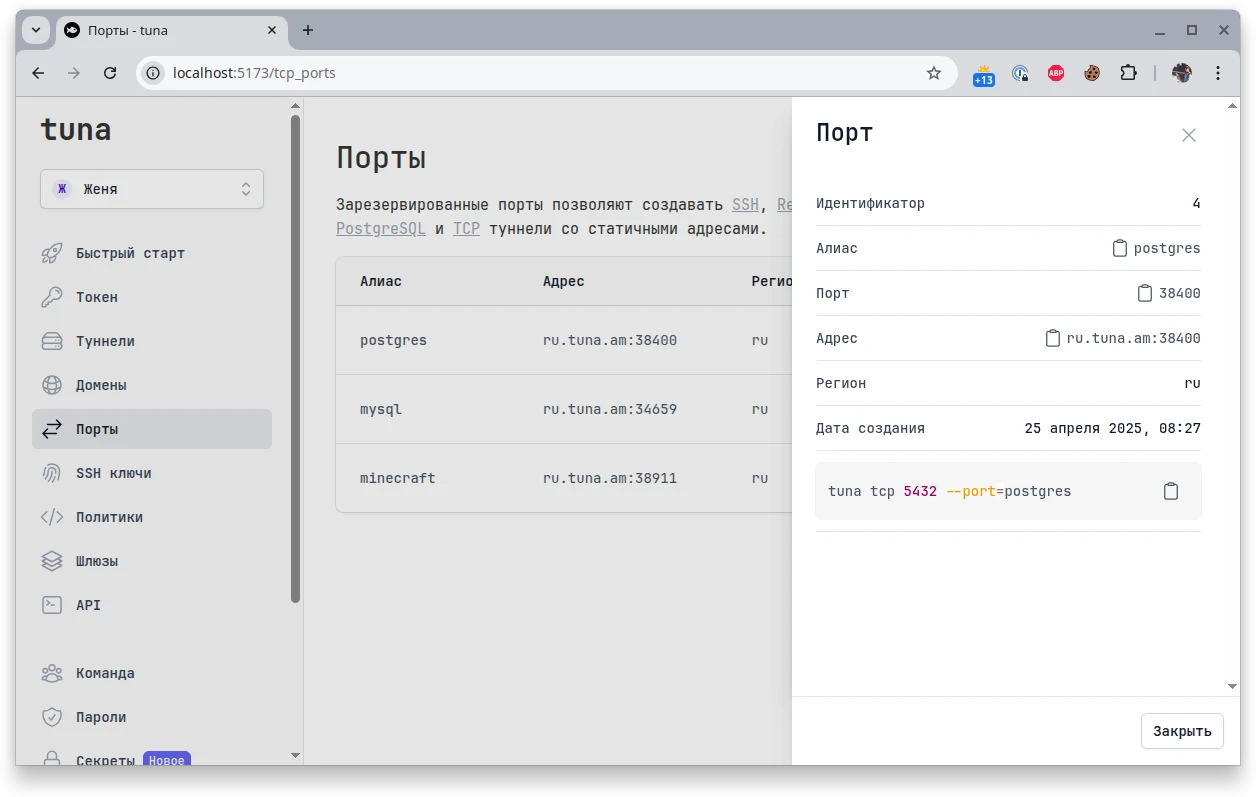
Port 5432 is given as an example, the address and port of your application may differ.
You can view details later:
Usage Examples
You will find more examples in the examples section.
PostgreSQL
- Reserve a port with the desired alias, for example
postgres. - Start the tunnel:
tuna postgres --port=postgres 5432
tuna tcp --port=postgres 5432
- Connect to the database through the tunnel:
psql "postgres://<username>:<password>@ru.tuna.am:38400/<db_name>?sslmode=disable"
or
psql -h ru.tuna.am -p 38400 -U postgres postgres
When connecting through a postgres tunnel, SSL is not supported.
Redis
- Reserve a port with the desired alias, for example
redis. - Start the tunnel:
tuna redis --port=redis 6379
tuna tcp --port=redis 6379
- Connect through the tunnel:
redis-cli -h ru.tuna.am -p 38400 -a <password>
SSH
- Reserve a port with the desired alias, for example
ssh. - Start the tunnel:
tuna ssh --port=ssh
We have implemented a special type of tunnels with a built-in SSH server, but you can also use a regular TCP tunnel to connect to a standard SSH server.
tuna tcp --port=ssh 22
- Connect through the tunnel:
ssh -p 38400 <login>@ru.tuna.am
Trigger
Read more about trigger tunnels in a separate guide.
- Reserve a port with the desired alias, for example
trigger-http. - Start the tunnel:
tuna trigger webhook --port=trigger-http /usr/local/bin/trigger.sh
- Connect through the tunnel:
curl -sSLf http://ru.tuna.am:38400
MySQL
- Reserve a port with the desired alias, for example
mysql. - Start the tunnel:
tuna tcp --port=mysql 6379
- Connect through the tunnel:
mysql --host=ru.tuna.am --port=38400 --user=<user_name> --password --database=<database_name> --ssl-mode=disabled
RTSP / IP camera
- Reserve a port with the desired alias, for example
rtsp. - Start the tunnel:
tuna tcp --port=rtsp 192.168.0.11:554
- Connect through the tunnel:
ffmpeg -rtsp_transport tcp -i rtsp://<login>:<password>@ru.tuna.am:38400/stream1
Minecraft
For Minecraft we have a detailed guide.
- Reserve a port with the desired alias, for example
minecraft. - Start the tunnel:
tuna tcp --port=minecraft 25565
- Connect in the launcher through the tunnel using the assigned address, for example -
ru.tuna.am:38400