SSHd tunnel
Available only with a subscription.
Overview
Tuna contains a built-in SSH server, this allows you to create a tunnel and provide remote SSH access without the need to run an SSH server and without any configuration on the user's side. In addition to the functionality of a regular SSH server, tuna allows you to record user sessions and view them.
Starting with version 0.36.0, tuna shows a full-screen interface in the terminal: connection instructions, a session feed and live session viewing.
Creating an SSHd tunnel is only available on Unix-like operating systems (macOS, Linux, FreeBSD), Windows is not supported.
Examples
You can view all current flags, hints, and examples by calling help:
tuna ssh --help
Almost all flags have corresponding environment variables.
Basic example
tuna ssh
After starting, connection instructions will be displayed:
Connection instruction:
1. echo "[ru.tuna.am]:12524 ssh-ed25519 xxx" >> ~/.ssh/known_hosts
2. ssh -p 12524 ru.tuna.am
3. ru.tuna.am's password: fsk3xdpgqpje7m5l
By default, any login is accepted, and the password is generated automatically and displayed in the console.
The tunnel node address is public, attackers can scan ports, find running SSHd tunnels and attempt password brute-forcing. Therefore, we do not recommend using password authentication, especially for long-running SSHd tunnels launched as a service. Below are instructions on how to enable SSH key authentication and disable password authentication
Static password
Login and password can be defined statically using the --auth flag or the TUNA_SSH_AUTH environment variable:
tuna ssh --auth="*:pass"
Where * means that username validation will not be performed, to restrict by username use the following format:
tuna ssh --auth="user:pass"
SSH key authentication
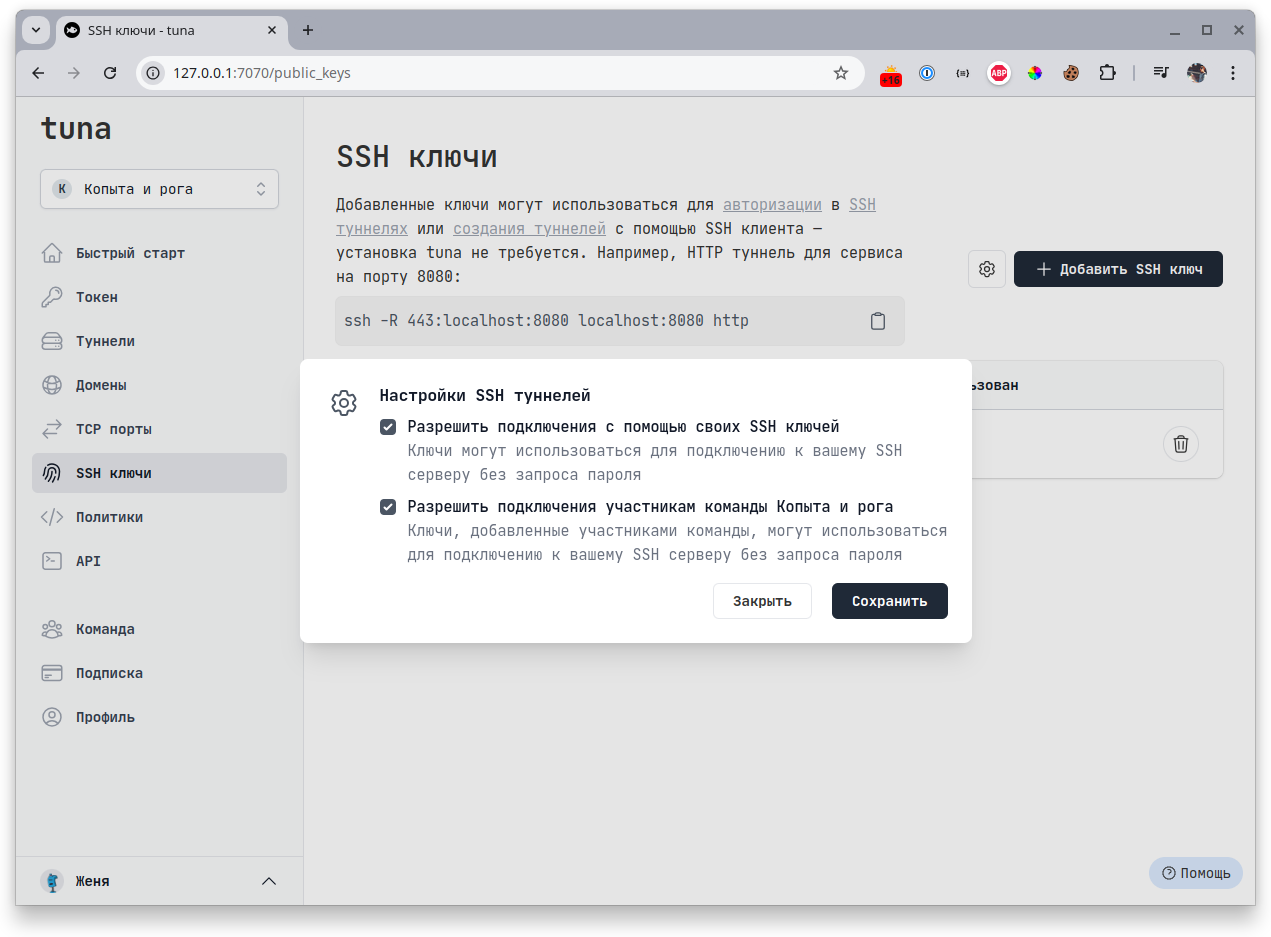
For key authentication, you need to first add your public key in the SSH Keys section in your personal account. Also, on the same page, in settings, enable - Allow connections using your SSH keys. In case of a team, you may have a common key, and you can - Allow connections to team members
- On the SSH Keys page - add your public key.
- Allow connections in SSH tunnels using your SSH keys:
Disable password authentication
tuna ssh --password-auth=false
Specifying a token
You can specify a particular token using the --token flag or the TUNA_TOKEN environment variable. Overriding follows the configuration ordering policy.
tuna ssh --token=tt_***
Specifying a connection region
You can specify a particular region using the --location/-l flag or the TUNA_LOCATION environment variable. Overriding follows the configuration ordering policy.
tuna ssh --location=nl
Static port
The value of the --port/-p flag can be an alias or an assigned port.
You can reserve ports in the dashboard, and after restarting the tunnel the address will remain the same.
For more details about ports, see the dedicated guide.
tuna ssh --port=ssh
tuna ssh --port=35000
IP subnet access restriction
You can define a whitelist of subnets in CIDR format:
tuna ssh --cidr-allow="10.0.0.1/32"
Or deny access from specific subnets:
tuna ssh --cidr-deny="10.0.0.1/32"
You can combine them, for example specify a wide network and subtract private IPs:
tuna ssh --cidr-allow="10.0.0.1/24" --cidr-deny="10.0.0.33/32"
You can also pass lists through commas:
tuna ssh --cidr-allow="10.0.0.1/24,192.168.0.1/24" --cidr-deny="10.0.0.33/32,192.168.0.33/32"
SSH session recording
Session recording is enabled by default, managed by the --record-session flag or the TUNA_RECORD_SESSION environment variable:
tuna ssh --record-session=false
Managing and viewing SSH sessions
There is a separate command tuna ssh-session for viewing and managing records.
List sessions
Run with tuna ssh-session list:
tuna ssh-session list
INFO[11:14:12] 2024-10-28 11:13:49. 2o3u9YtqncQ5JfCtrj73WjFHDqR (jidckii, active)
View recording
Run with tuna ssh-session watch [session]:
tuna ssh-session watch 2o3u9YtqncQ5JfCtrj73WjFHDqR
tuna:jidckii> ^C
tuna:jidckii> exit
Delete all recordings
tuna ssh-session clear
Behavior
SFTP
SFTP is supported, no additional configuration is required.