Access Policies
This section is available to the Founder, Owners and Administrators.
Policies are the heart of the access control system in applications. Every incoming request passes through a chain of policies, and the first policy whose path pattern matches determines the outcome: allow, require MFA, request approval, or deny.
By default, access is denied — if no policy matches, the request is rejected.
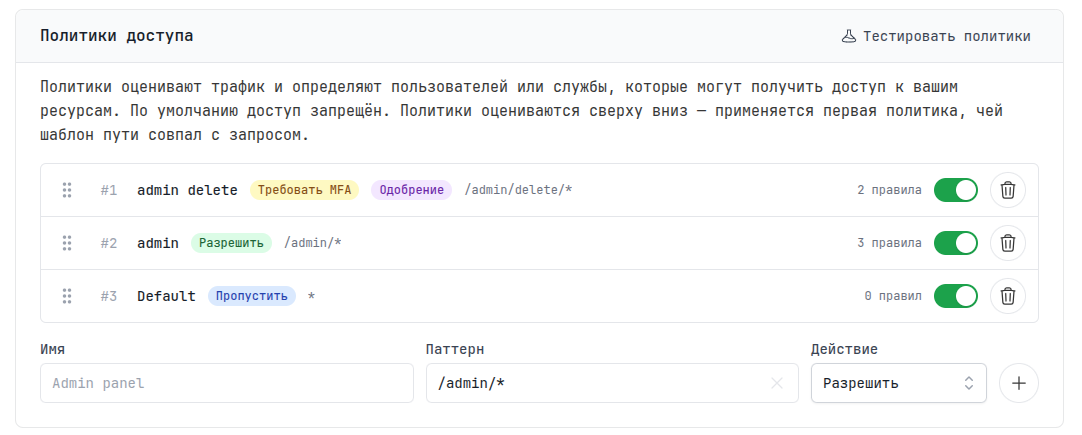
How a policy works
Each policy is defined by three key parameters:
| Parameter | Description |
|---|---|
| Name | A descriptive title — "Admin panel", "Public API", "Monitoring" |
| Path pattern | A glob pattern for the URL path: * — all paths, /admin/* — everything under /admin/ |
| Action | What happens when the path matches |
Actions
Allow — the user gains access if they pass the rule checks. The most common action.
Require MFA — works like "Allow", but additionally requires a second-factor confirmation (a TOTP app or an email code). Use it for sensitive sections — finances, data deletion, user management.
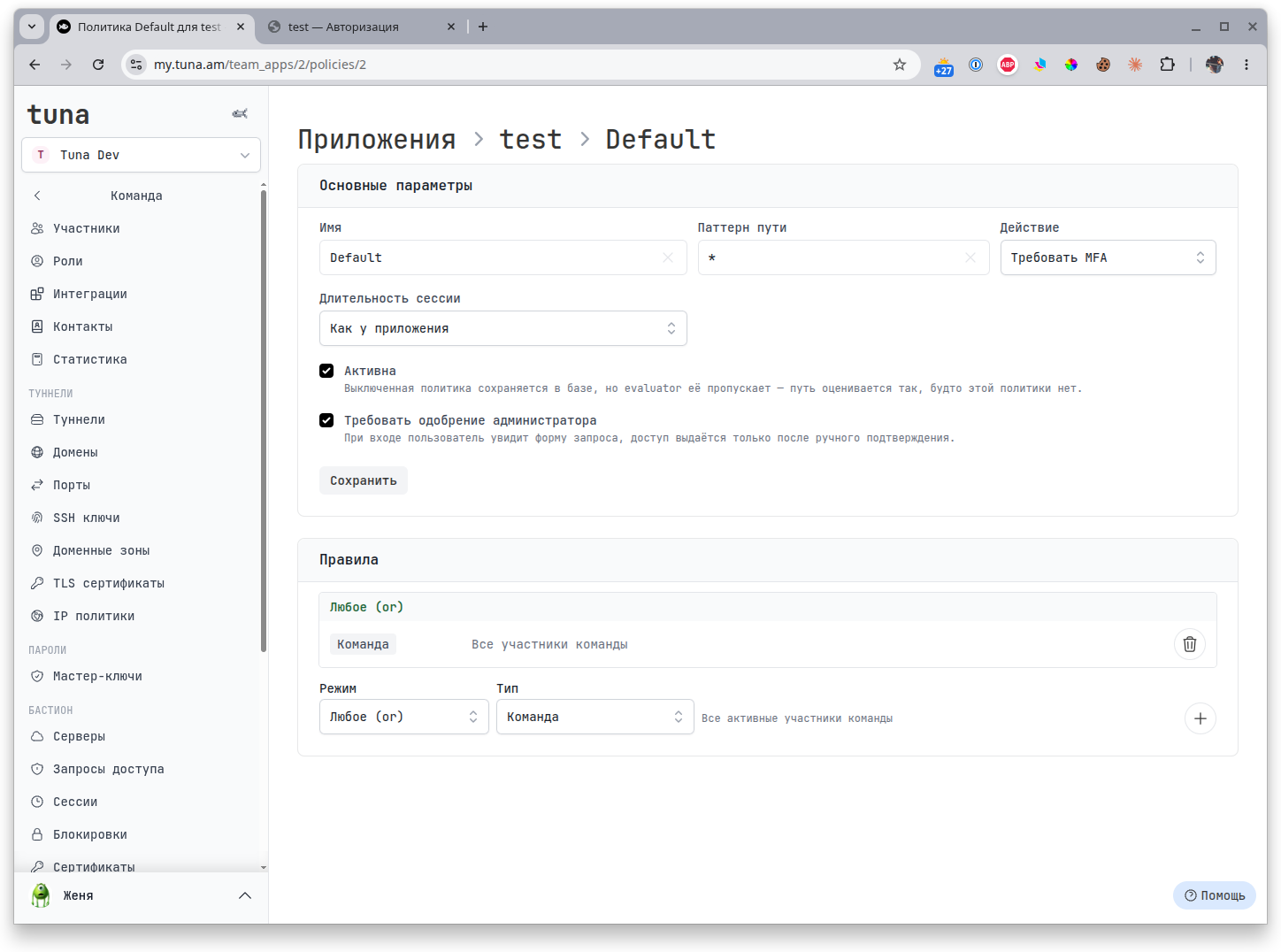
Deny — unconditional block. Rules are not even checked — the request is rejected immediately. This is useful when you need to block a path for everyone and then create an allow policy with a higher priority for select users.
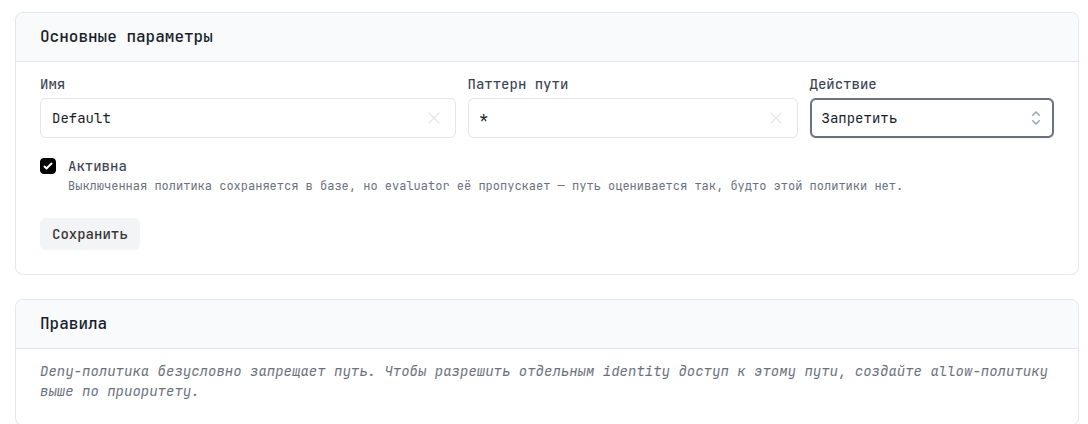
Bypass — the path is accessible without any authentication at all. The sign-in page is not shown. Typical candidates: health checks, webhook endpoints, public APIs.
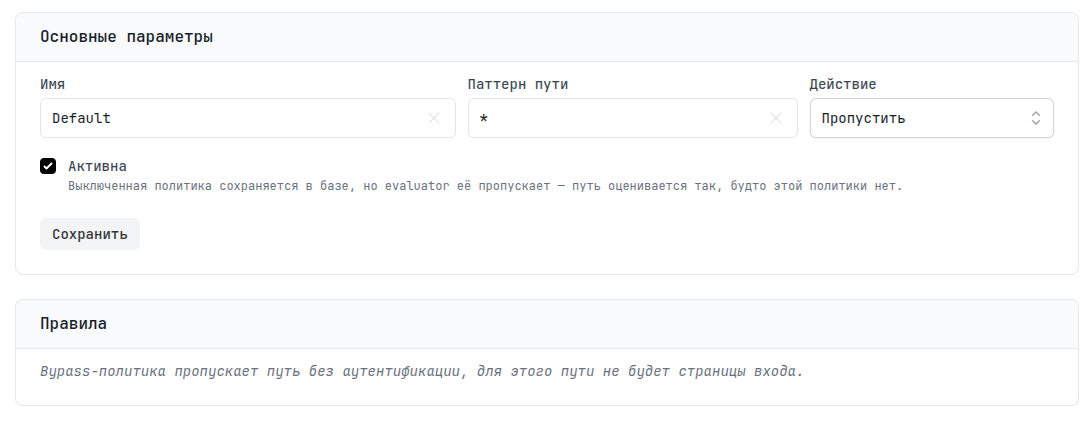
Additional parameters
- Session duration — you can set a custom session TTL for a specific policy, different from the application's default.
- Active — a disabled policy is saved but skipped during evaluation. Handy for temporarily disabling without deleting.
- Require admin approval — before gaining access, the user fills out a form explaining their reason, and an admin manually approves or denies the request. See Access Requests for details.
Rules
Inside each policy with an "Allow" or "Require MFA" action, you configure rules — they determine who exactly gets access.
Rule modes
Rules are grouped by modes, and modes combine with each other:
| Mode | Logic | Meaning |
|---|---|---|
| Any (or) | OR | At least one rule must match |
| All (and) | AND | All rules must match simultaneously |
| Exclude | NOT | If any rule matches — access is denied |
Access is granted when: at least one Any rule matched, all All rules matched, and no Exclude rule triggered.
Rule types
| Type | Description | Example value |
|---|---|---|
| Team | All active team members | — |
| A specific email address | alice@company.com | |
| Email RegExp | A regular expression for email | .*@company\.com$ |
| Service Token | Machine authentication via a service token | Client ID |
| IP / CIDR | An IP address or subnet | 10.0.0.0/8 |
| Sign-in method | Authentication method | oidc, otp, mfa |
| Provider | A specific Identity Provider | google, * |
| Country | ISO country code (determined by GeoIP) | RU, US, DE |
Example
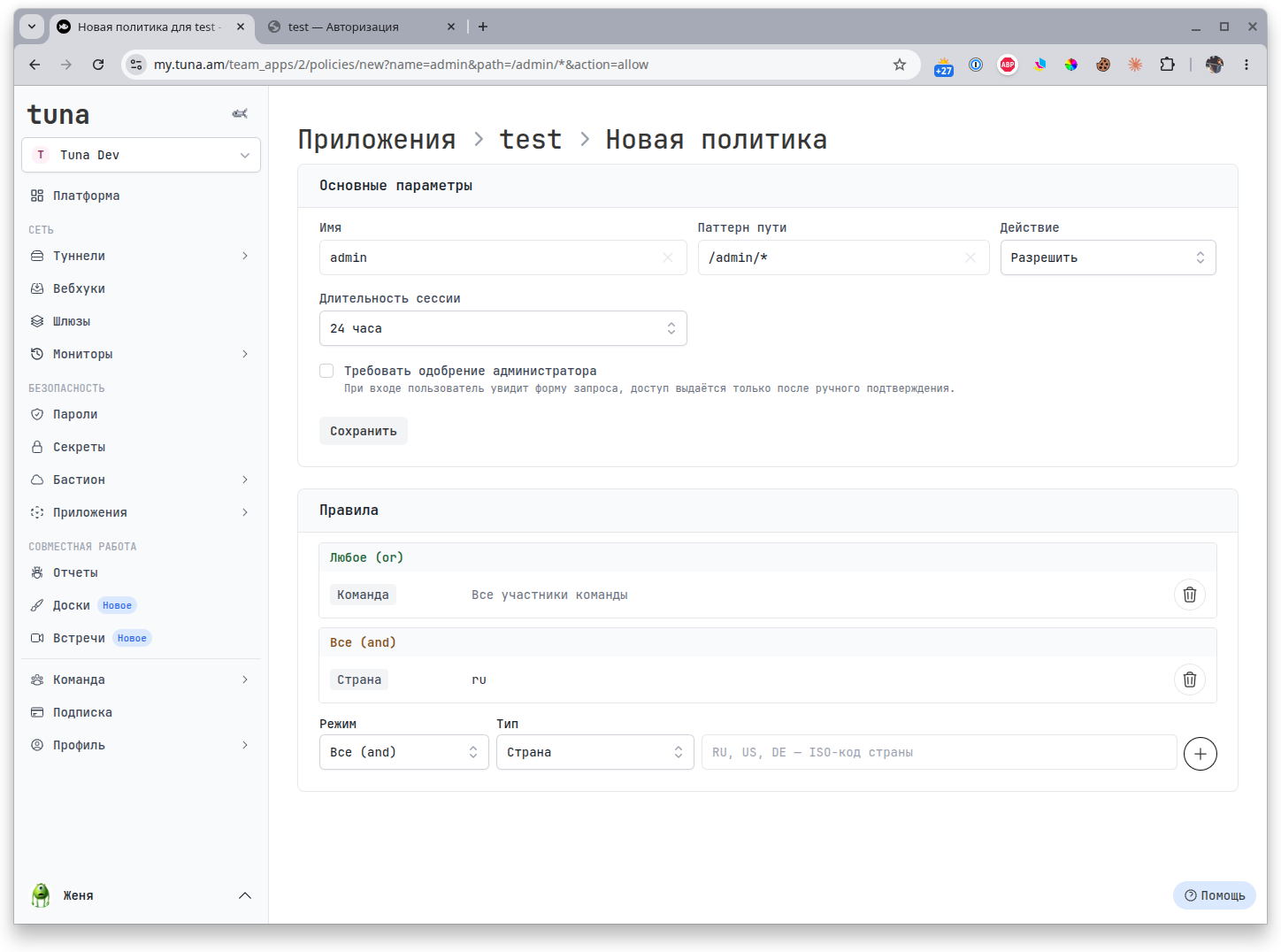
Suppose you want only team members from Russia to access /admin/*. Create a policy:
- Name: admin
- Pattern:
/admin/* - Action: Allow
- Rules:
- Any (or): Team — all members
- All (and): Country —
RU
Result: to access the admin panel, you must be a team member and connect from Russia.
Priority and order
Policies are evaluated top to bottom by number — the lower the number, the higher the priority. As soon as a request path matches a policy's pattern, that policy is applied and the rest are not checked.
You can reorder policies by dragging them in the interface.
When an application is created, a Default policy with the * pattern and the lowest priority is created automatically. It handles all paths not covered by other policies. Removing it is not recommended — without it, all uncovered paths will be silently rejected.
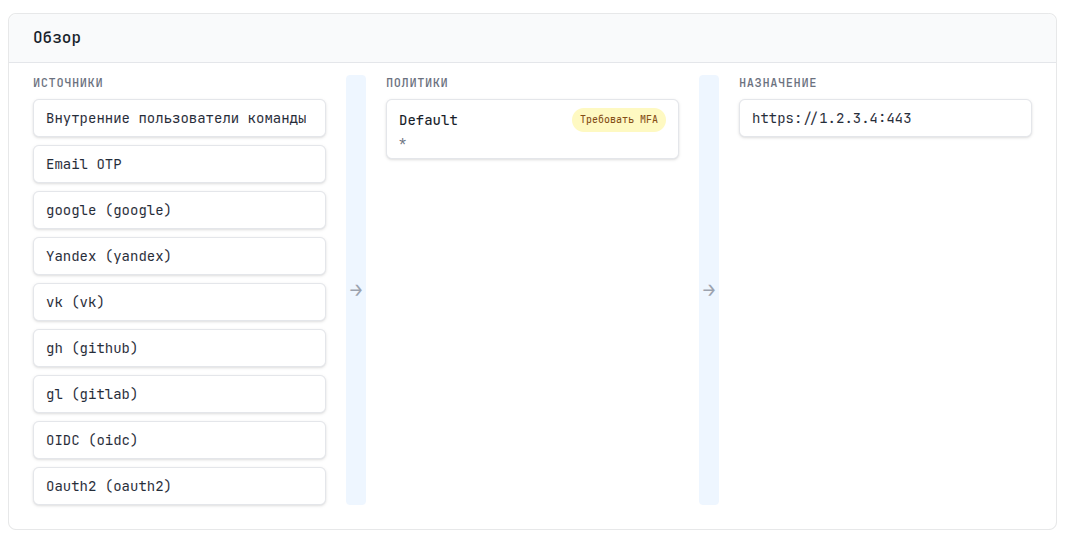
Overview
The Overview block on the details page visualizes the full picture: who signs in, which policies they pass through, and where they end up.
Testing policies
Before applying a configuration, you can verify it. The Policy Test tool lets you simulate a request with any parameters — email, country, IP, sign-in method, MFA status — and see what decision the system would make.
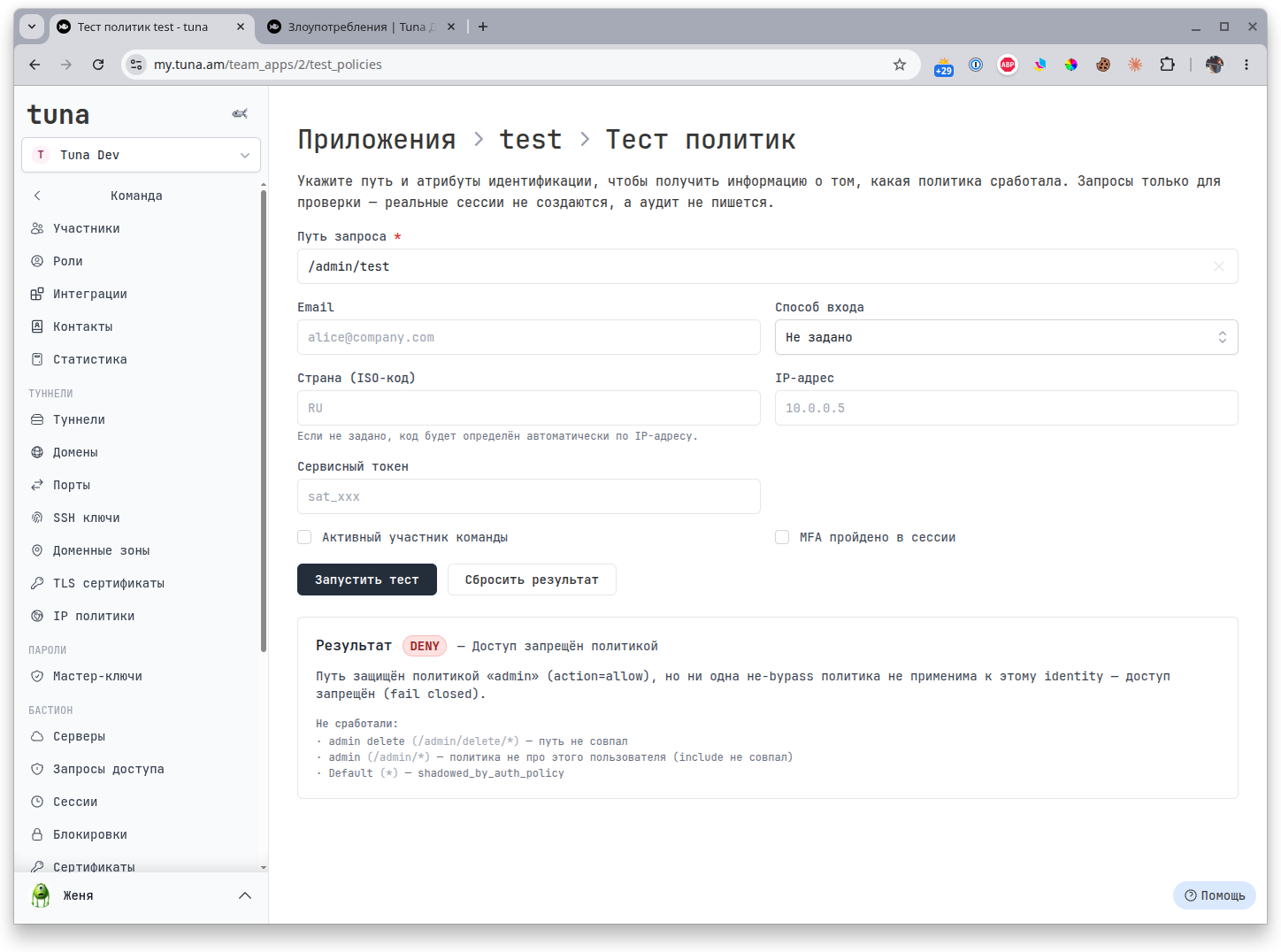
The result shows which policy matched, which rules triggered, and the final decision. The tester does not create real sessions — it is a safe way to debug.