tuna ❤️ NanoKVM
NanoKVM is a compact IP-KVM device from Sipeed based on RISC-V (Cube/PCIe), ARM64 (Pro), or ARMv7 (GxxKVM/JxxKVM). It allows you to remotely control a computer: see the screen, control the keyboard and mouse, mount disk images — all through a web interface in the browser.
By default, NanoKVM is only accessible on the local network. With Tuna, you can expose it to the internet — without a public IP, without a VPN, and without port forwarding on the router.
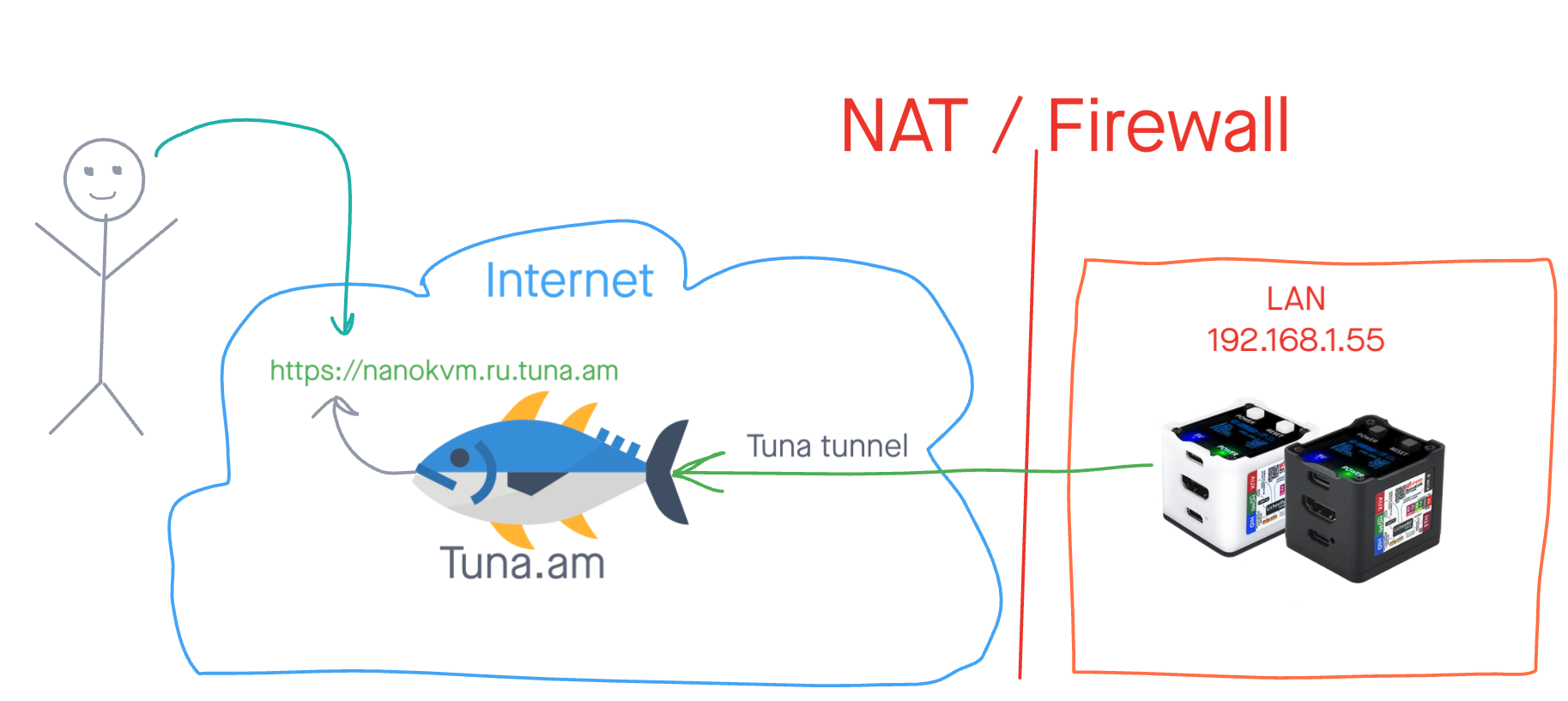
We have only tested this guide on the NanoKVM Cube, but it most likely works on all devices in the NanoKVM lineup.
Preparation
In addition to installation, the setup guide is split into 2 types depending on whether you have a paid Tuna subscription.
What you will need
- NanoKVM, connected to the local network and accessible via SSH or the terminal in the web interface
- An account on tuna.am (free or with a subscription)
- An auth token from the token page
NanoKVM storage layout
NanoKVM has three partitions:
| Partition | Mount point | Purpose |
|---|---|---|
/dev/mmcblk0p1 | /boot | Bootloader, kernel |
/dev/mmcblk0p2 | / | Root FS (Buildroot) |
/dev/mmcblk0p3 | /data | Data, ISO images |
The /data partition is preserved across application updates and remote rsync, so we will store tuna there.
Installing tuna on NanoKVM
Connect to NanoKVM via SSH and install the binary:
ssh root@<NanoKVM-IP-address>
Or open the terminal in the web interface:
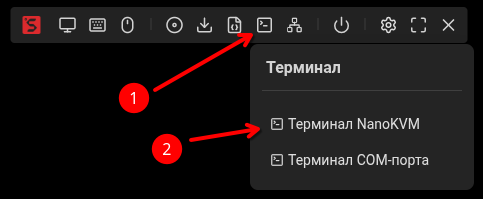
Install tuna using the script, specifying /data/tuna as the install directory:
- curl
- wget
mkdir -p /data/tuna
INSTALL_DIR=/data/tuna sh -c "$(curl -sSLf https://releases.tuna.am/tuna/get.sh)"
mkdir -p /data/tuna
INSTALL_DIR=/data/tuna sh -c "$(wget -qO- https://releases.tuna.am/tuna/get.sh)"
The /data partition is mounted as exFAT with fmask=0022, files automatically get 0755 permissions — the binary can be run immediately after copying. Additionally, /data is preserved across updates, so tuna does not need to be reinstalled.
Save the auth token:
/data/tuna/tuna --config=/data/tuna/.tuna.yml config save-token <YOUR_TOKEN>
We recommend creating a dedicated token for the device.
Type 1. Free plan — HTTP tunnel
The free plan provides an HTTP tunnel with a dynamic address. This is enough to expose the NanoKVM web interface to the internet and control your computer through a browser.
- The tunnel address changes every 30 minutes
- You cannot set a fixed subdomain
- The current address is always available in the personal cabinet
Creating a startup script
cat << 'EOF' > /data/tuna/tuna-http.sh
#!/bin/sh

# Wait for the network
while ! ip route | grep -q default; do
    sleep 1
done

exec /data/tuna/tuna \
    --config=/data/tuna/.tuna.yml \
    --log=/tmp/tuna-http.log \
    http \
    --inspect=false \
    --basic-auth=tuna:SecurePasswd \
    --https-redirect \
    80
EOF
chmod +x /data/tuna/tuna-http.sh
Flag explanation
| Flag | Required | Description |
|---|---|---|
--inspect=false | No | Disables the traffic inspector (not needed for KVM) to save RAM |
--basic-auth=admin:YourPassword | No | Additional HTTP authentication (details) |
--https-redirect | No | Redirects HTTP to HTTPS |
80 | Yes | NanoKVM web interface port |
You can also restrict access by IP subnets.
Configuring auto-start
Add a line to /etc/inittab so that init automatically starts and restarts the tunnel:
cat << 'EOF' >> /etc/inittab

# Tuna HTTP tunnel (respawn = auto-restart)
tweb::respawn:/data/tuna/tuna-http.sh
EOF
Apply without rebooting:
kill -HUP 1
Verification
Make sure the process is running:
ps -ef | grep tuna
The output should contain a line with /data/tuna/tuna ... http .... If there is no such process — see the Troubleshooting section.
In the logs, you will see your tunnel URL:
cat /tmp/tuna-http.log
The current address is also available in the personal cabinet.
Type 2. Subscription — SSH and HTTP tunnels
With a subscription you get:
- Fixed subdomain for the HTTP tunnel — the address does not change
- SSH tunnel — direct access to the NanoKVM console from anywhere in the world
And in general there are essentially no limits — you can run a few more tunnels and expose access, for example, to the router web interface, SSH, or RDP of the controlled or any other computer on the local network.
HTTP tunnel with a fixed address
cat << 'EOF' > /data/tuna/tuna-http.sh
#!/bin/sh

# Wait for the network
while ! ip route | grep -q default; do
    sleep 1
done

exec /data/tuna/tuna \
    --config=/data/tuna/.tuna.yml \
    --log=/tmp/tuna-http.log \
    http \
    --subdomain=nanokvm \
    --inspect=false \
    --basic-auth=admin:YourPassword \
    --https-redirect \
    80
EOF
chmod +x /data/tuna/tuna-http.sh
The difference from the free version is the --subdomain=nanokvm flag, which reserves a permanent address for you. After restarting the tunnel, the URL will remain the same.
The example subdomain is already taken. Reserve your subdomain in advance in the personal cabinet, then use it in the --subdomain=your-subdomain flag.
HTTP tunnel flag explanation
| Flag | Required | Description |
|---|---|---|
--subdomain=nanokvm | No | Reserves a permanent tunnel address (subscription only) |
--inspect=false | No | Disables the traffic inspector (not needed for KVM) to save RAM |
--basic-auth=admin:YourPassword | No | Additional HTTP authentication (details) |
--https-redirect | No | Redirects HTTP to HTTPS |
80 | Yes | NanoKVM web interface port |
You can also restrict access by IP subnets.
SSH tunnel
The SSH tunnel allows you to connect to the NanoKVM console over the internet. This is convenient for administration, firmware updates, and diagnostics.
cat << 'EOF' > /data/tuna/tuna-ssh.sh
#!/bin/sh

# Wait for the network
while ! ip route | grep -q default; do
    sleep 1
done

exec /data/tuna/tuna \
    --config=/data/tuna/.tuna.yml \
    --log=/tmp/tuna-ssh.log \
    ssh \
    --port=nanokvm-ssh \
    --record-session=false \
    --password-auth=false
EOF
chmod +x /data/tuna/tuna-ssh.sh
SSH tunnel flag explanation
| Flag | Required | Description |
|---|---|---|
--port=nanokvm-ssh | No | Reserves the SSH tunnel port. Without this flag, the port is assigned randomly on each startup. The port alias must be reserved in advance before startup. |
--record-session=false | No | Disables recording SSH sessions to disk. Recommended on embedded devices with limited storage to save space. |
--password-auth=false | No | Disallows password authentication — access via SSH keys only (details) |
You can also set a static login and password or restrict access by IP subnets.
Configuring auto-start for both tunnels
Add lines to /etc/inittab:
cat << 'EOF' >> /etc/inittab

# Tuna tunnels (respawn = auto-restart)
tssh::respawn:/data/tuna/tuna-ssh.sh
tweb::respawn:/data/tuna/tuna-http.sh
EOF
Apply without rebooting:
kill -HUP 1
Verifying tunnels
Make sure both processes are running:
ps -ef | grep tuna
The output should contain two lines — one with http and one with ssh. If a process is missing — see the Troubleshooting section.
View the logs:
cat /tmp/tuna-http.log
cat /tmp/tuna-ssh.log
The HTTP tunnel logs will contain the URL, and the SSH tunnel logs will contain connection instructions with the address and port.
Managing tunnels
With inittab respawn, the tuna process is automatically restarted on failure. Use the following commands to manage it:
Check status
ps -ef | grep tuna
Stop a tunnel
You cannot just kill the process — init will restart it immediately. First, comment out the line in /etc/inittab:
# Stop the HTTP tunnel
sed -i 's/^tweb:/#tweb:/' /etc/inittab && kill -HUP 1

# Stop the SSH tunnel
sed -i 's/^tssh:/#tssh:/' /etc/inittab && kill -HUP 1
Start a tunnel
Uncomment the line back:
# Start the HTTP tunnel
sed -i 's/^#tweb:/tweb:/' /etc/inittab && kill -HUP 1

# Start the SSH tunnel
sed -i 's/^#tssh:/tssh:/' /etc/inittab && kill -HUP 1
Recovery after re-flashing
The binary and scripts in /data/tuna/ are preserved during application updates via the web interface and during remote rsync. After a full re-flash (Etcher), you will need to copy the binary and create the scripts again.
For remote rsync, you only need to restore the lines in /etc/inittab:
cat << 'EOF' >> /etc/inittab

# Tuna tunnels (respawn = auto-restart)
tssh::respawn:/data/tuna/tuna-ssh.sh
tweb::respawn:/data/tuna/tuna-http.sh
EOF
kill -HUP 1
If you also use availability monitoring, don't forget to restore the corresponding line in /etc/inittab.
Additional security settings
Why you need --basic-auth
NanoKVM has its own authentication in the web interface. However, given the history of vulnerabilities in IoT devices, we strongly recommend adding an extra layer of protection. When exposing access through the internet, it's better to be safe — the --basic-auth flag adds standard HTTP authentication (username and password in the browser) before the request even reaches NanoKVM.
--basic-auth=mylogin:MyStr0ngP@ss
Set your own login and password. Do not use the values from the examples.
SSH tunnel authentication
Option 1. SSH keys (recommended)
The --password-auth=false flag disables password login. To connect, you will need to add a public SSH key in advance in the personal cabinet.
Detailed guide: SSH keys setup
Tunnel nodes have public addresses. Attackers can scan ports and start brute-forcing passwords. For long-lived SSH tunnels, we strongly recommend disabling password authentication.
Option 2. Static login and password
If SSH keys are not suitable, you can set fixed credentials:
--auth=user:pass
Replace user and pass with your own values.
Restricting access by IP subnets
For HTTP and SSH tunnels, you can restrict access by IP addresses.
Allow access only from specific subnets:
--cidr-allow="203.0.113.0/24"
Deny access from specific subnets:
--cidr-deny="198.51.100.0/24"
You can combine — allow a subnet but exclude individual addresses:
--cidr-allow="10.0.0.0/24" --cidr-deny="10.0.0.33/32"
Use IP filtering carefully. If you make a mistake with the subnet or your IP address changes — you will lose remote access to NanoKVM. Make sure you have an alternative way to manage the device (for example, local access).
Troubleshooting
tuna process does not start
Check that the process is in the list:
ps -ef | grep tuna
If the output has no lines with /data/tuna/tuna, make sure the entries in /etc/inittab are not commented out:
grep tuna /etc/inittab
The lines should start with tssh:: or tweb::, not #. If they are commented out, uncomment them and reload the configuration:
kill -HUP 1
Viewing logs
Tunnel logs are written to /tmp/ and are available until the device reboots:
# HTTP tunnel logs
cat /tmp/tuna-http.log

# SSH tunnel logs
cat /tmp/tuna-ssh.log
To watch logs in real time:
tail -f /tmp/tuna-http.log
Common errors in logs
| Error | Cause | Solution |
|---|---|---|
token is invalid | Invalid or expired token | Repeat config save-token with a fresh token from the page |
Domain already reserved | Subdomain is taken by another user | Choose another name via --subdomain= |
port alias not found | Port alias is not reserved | Reserve the alias in the personal cabinet |
connection refused | No internet access | Check the network: ping -c 3 8.8.8.8 |
No internet access
Check that NanoKVM has a network connection:
# Check for an IP address
ip addr

# Check the default route
ip route

# Check internet access
ping -c 3 8.8.8.8
Logs disappeared after a reboot
Logs are stored in /tmp/, which is cleared on reboot. This is normal behavior. If you need to keep logs across reboots, change the path in the startup scripts to /data/tuna/:
--log=/data/tuna/tuna-http.log
On NanoKVM, the /data partition is exFAT, and frequent log writes may shorten the SD card's lifespan. Use this only for temporary debugging.
Tunnel was working and stopped
- Check whether the firmware was updated — after remote rsync, you need to restore the entries in
/etc/inittab(see Recovery after re-flashing) - Check the logs for errors
- Make sure the token is still valid in the personal cabinet
Links
- NanoKVM — official documentation
- NanoKVM — GitHub repository
- Updating NanoKVM
- Re-flashing NanoKVM
- HTTP tunnel — all flags
- SSH tunnel — all flags
- SSH keys setup
- Running tuna as a service
Availability monitoring
In addition to tunnels for remote access, you can set up availability monitoring for NanoKVM. Heartbeat monitoring will send you notifications if the device loses internet connectivity or stops responding.
Full guide: NanoKVM availability monitoring